Help & docs
How to use and troubleshoot SuperReminder.
If you have been facing issues with receiving notifications from SuperReminder while using Chrome on Mac, this walk you through a step-by-step process to identify and resolve common issues related to Chrome notifications on your Mac. So, let's dive in and get those reminders working again!


Fixing SuperReminder and Chrome Notifications on Mac
Open System Settings
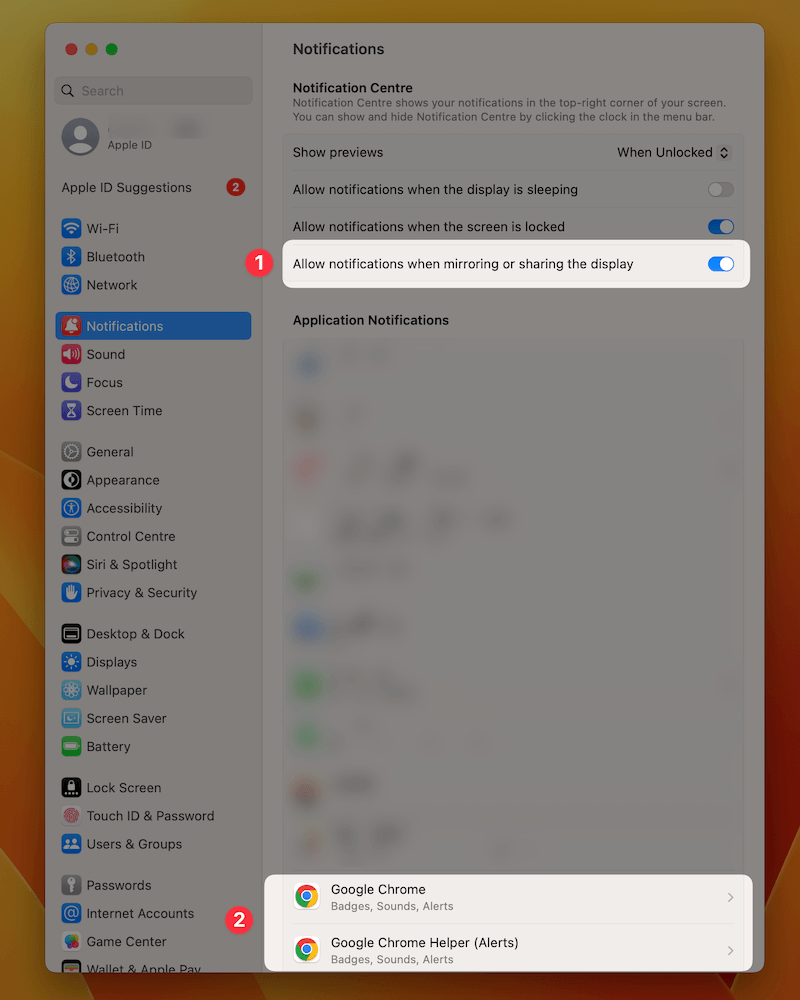
Go to Apple menu > System Settings, then click Notifications in the sidebar.
Allow shared display notifications and locate Chrome
- Toggle On the Allow notifications when mirroring or sharing the display

- Click Google Chrome in the list below (might need to scroll) and perform actions from step 3 below
- Click Google Chrome Helper (Alerts) if it is visible and perform actions from step 3
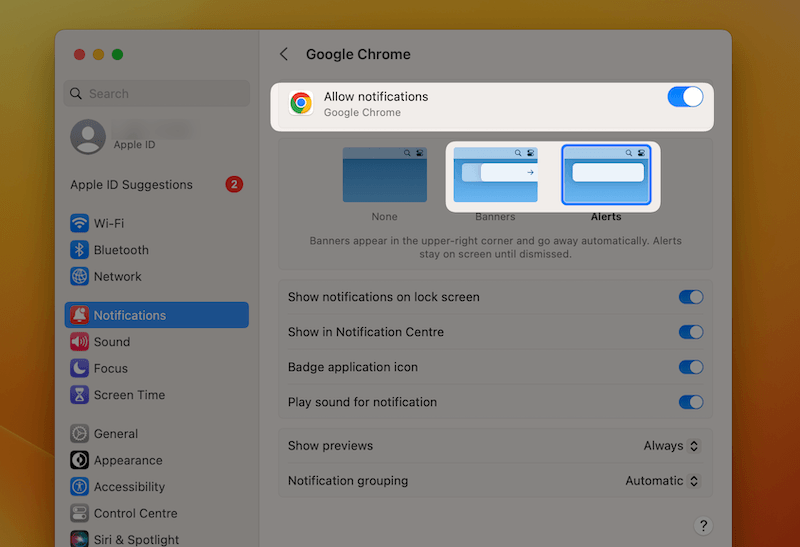
Make sure notifications are On
- Toggle On the Allow notifications
- Select Alerts as an appear.
- Optionally select Show notifications on lock screen and Show in Notification center.
Allow Chrome Notifications in the Focus Mode
Okay, this is the last step, I promise. Bear with me!
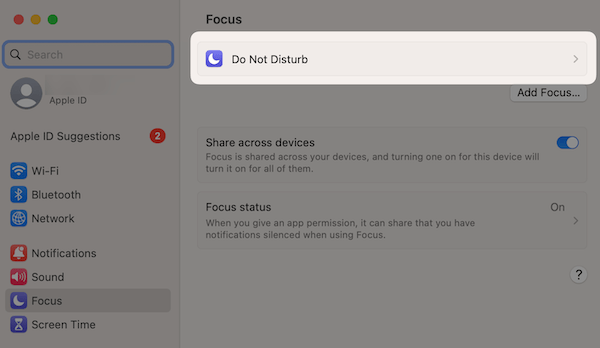
Go to Apple menu > System Settings, then click Focus in the sidebar.
Click Do not disturb
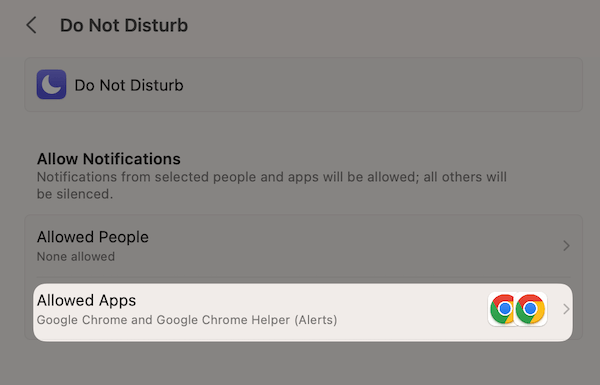
Click Allowed Apps and add Google Chrome and Google Chrome Helper to the list
Still having troubles?
Reach out to [email protected] and I will help you in troubleshooting this issue!

Fixing SuperReminder and Chrome Notifications on Windows
Open System Settings
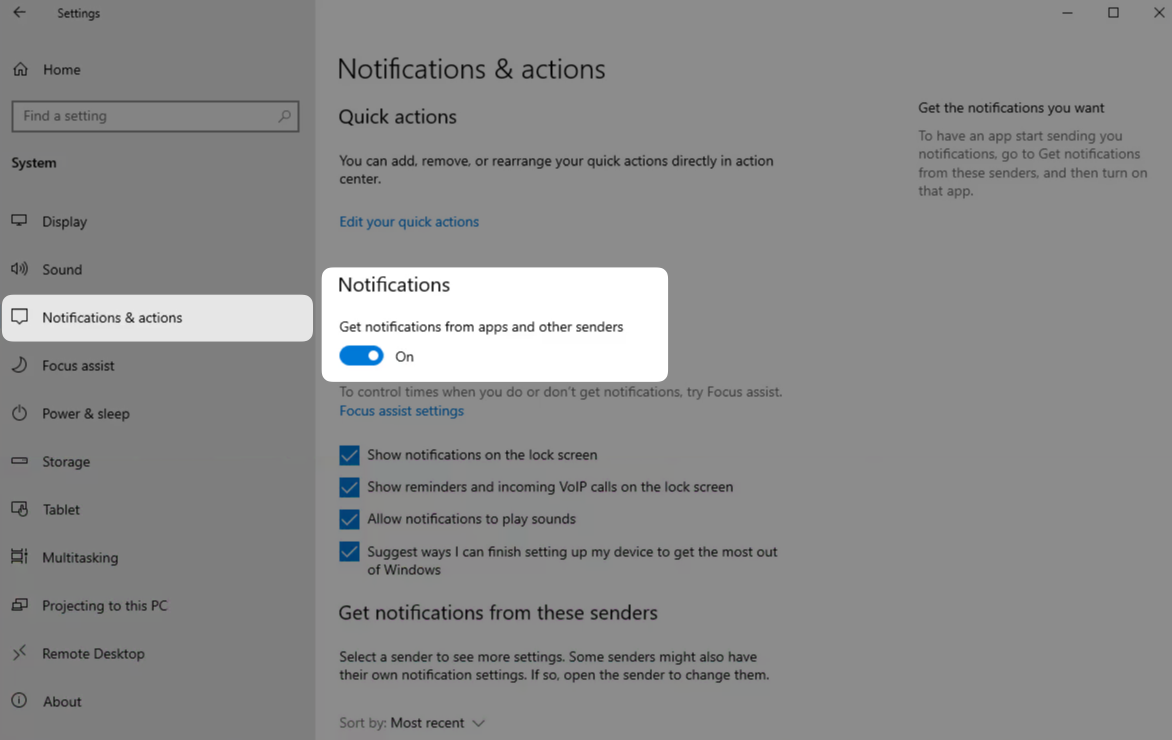
Go to Windows menu > Settings, then click Notifications & actions in the sidebar.
Allow shared display notifications and locate Chrome
Toggle on the Get Notifications from apps and other senders
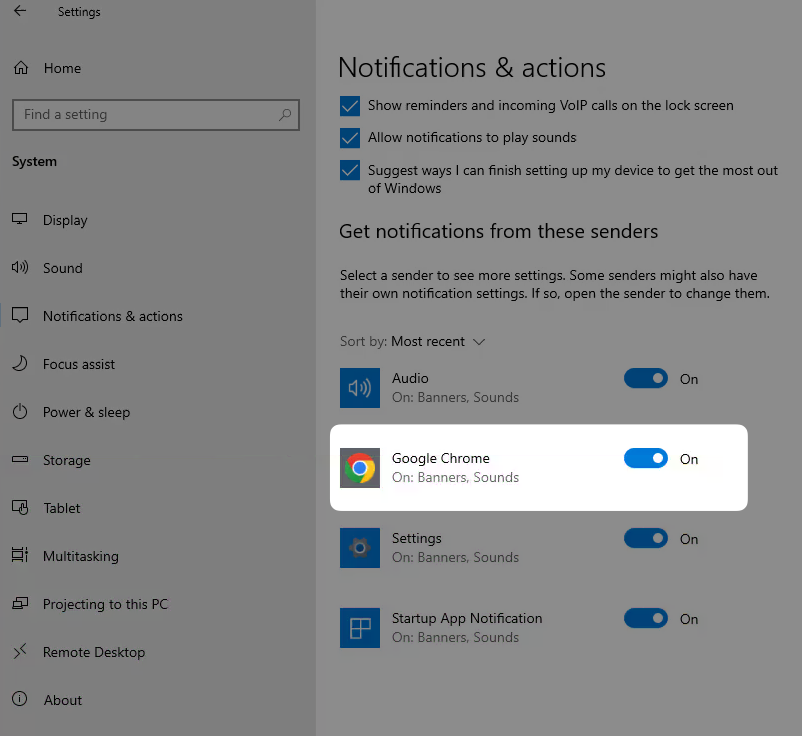
Scroll down and toggle on the Google Chrome
Allow Chrome Notifications in the Focus Mode
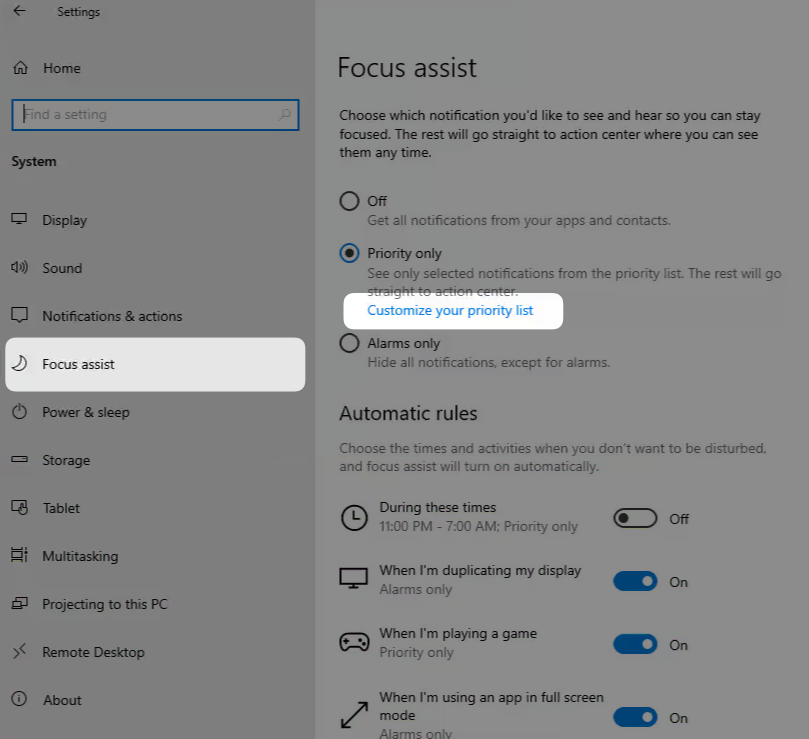
Go to Windows menu > Settings, then click Focus assist in the sidebar.
- If you have Off selected, you can skip this step
- Otherwise select Priority only and click Customize your priority list
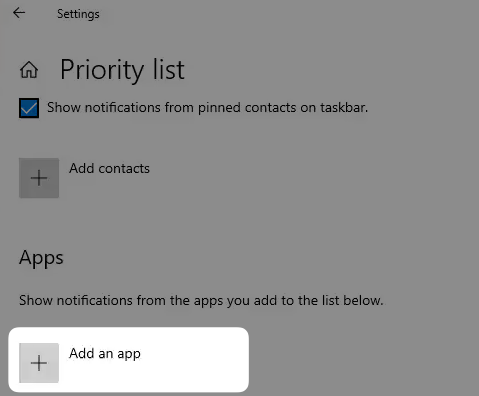
- Scroll down to Apps and click Add An App
- Find and add Google Chrome in the list
Still having troubles?
Reach out to [email protected] and I will help you in troubleshooting this issue!