Browser Extension
Install the Chrome extension, connect your account, and record voice notes to Notion, Google Docs, Sheets, or email right from any tab.
The SendMyVoice browser extension lets you record a voice note from any tab and send it straight to Notion, Google Docs, Google Sheets, or email, without opening the web app. It uses the same workflows and integrations you've already set up in your account.
This guide covers installing it, connecting your account, recording your first note, and fixing common issues.
Install the extension
- Open the Chrome Web Store listing.
- Click Add to Chrome (or Add to Edge / Add to Brave; it works in any Chromium-based browser).
- Confirm the permissions prompt.
Once installed, pin the extension so it's always one click away: click the puzzle-piece icon in your browser toolbar, then the pin next to SendMyVoice.
Connect your account
The extension delivers notes through your SendMyVoice account, so the first time you open it you'll be asked to sign in.
- Click the extension icon to open the side panel.
- Click Sign in and complete sign-in in the tab that opens (Google or magic link, the same options as the web app).
- Once connected, the panel shows your workflows and you're ready to record.
If you don't have an account yet, sign up first. It's free, and the free plan includes 20 recordings a month.
Record a voice note
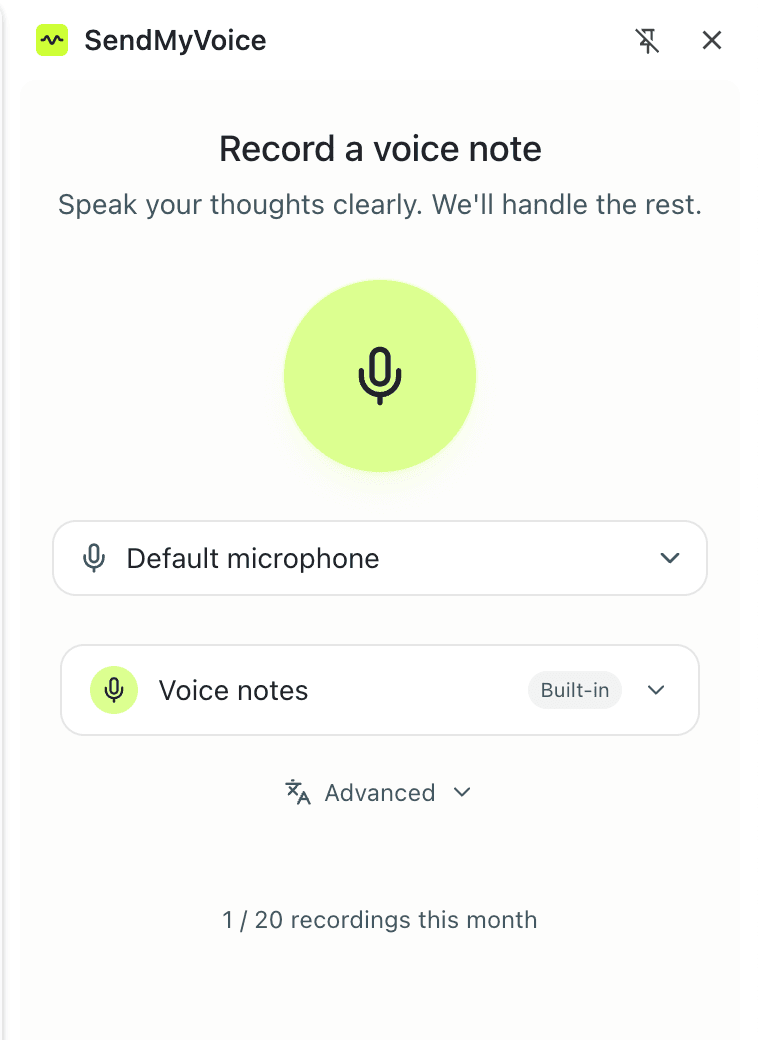
- Click the extension icon to open the side panel.
- Pick a destination: this is one of your workflows (a Notion database, a Google Doc, a Sheet, email, or the built-in Voice notes).
- Press record and speak naturally. Mention specific details (names, dates, amounts, priorities) and the AI will organize them into the right fields.
- Stop when you're done. We transcribe the audio, structure it, and deliver it to the destination you chose.
When it finishes, the panel links you straight to the created Notion page, doc, sheet row, or note.
Tip: the destination you used last is remembered, so recording again is a single click.
Where your notes go
The extension can send to any workflow you've created in the web app:
- Notion: a new page, or one or more structured rows in a database.
- Google Docs: a clean document with your summary and full transcript.
- Google Sheets: a row (or several) with the columns filled in.
- Email: a summary or the full transcript sent to any address.
- Voice notes: keep the note in SendMyVoice without sending it anywhere.
To add or change destinations, open your workflows in the web app. Any change shows up in the extension the next time you open the panel.
Send a voice message in Gmail
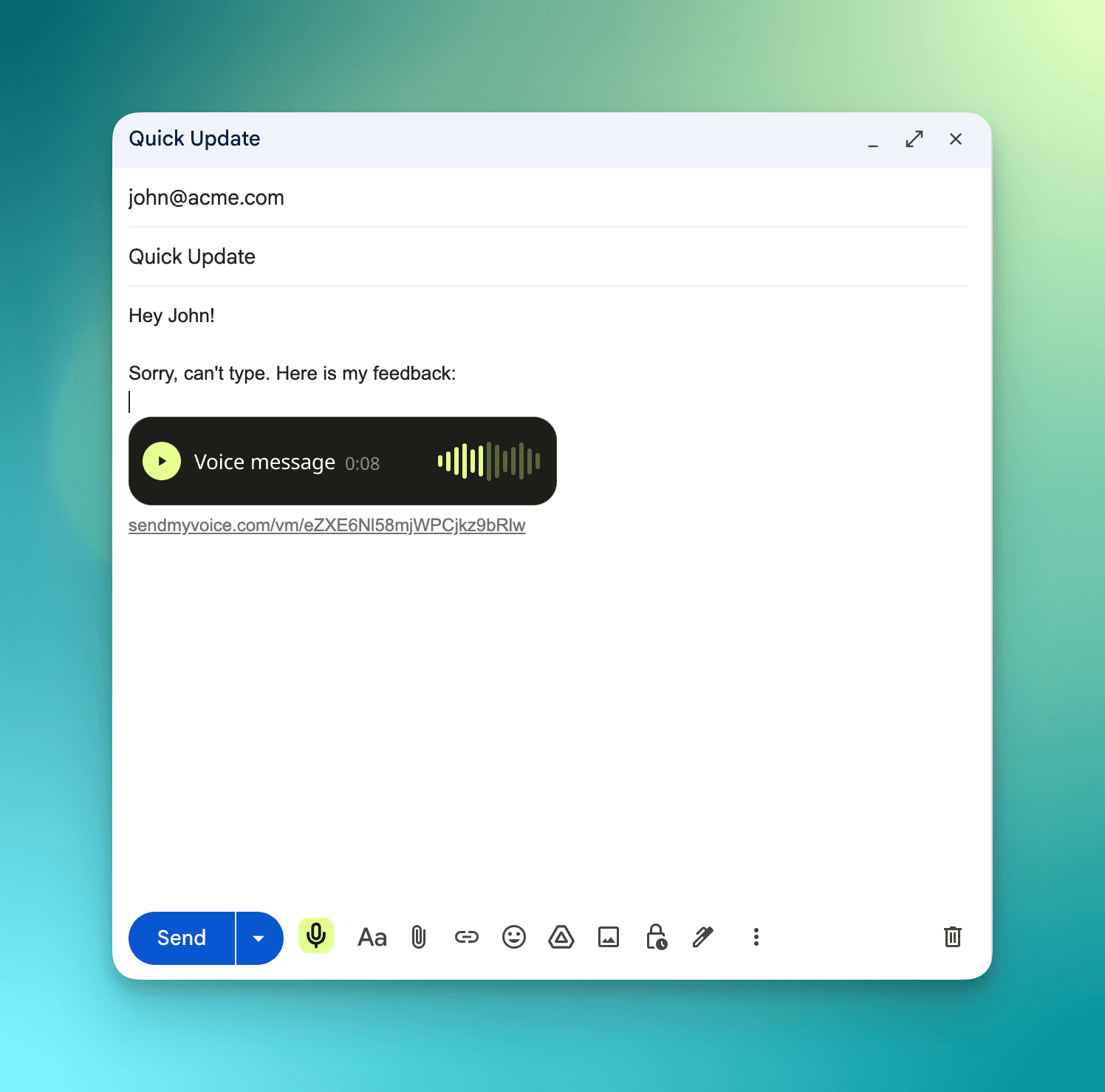
The extension also adds a mic button directly to your Gmail compose window, so you can drop a voice message into any email. Handy when typing is slow or you want a personal touch.
- Open a new email in Gmail (with the extension installed and signed in).
- Click the mic button in the compose toolbar, alongside the formatting options.
- Record your message, then stop. A voice message player is inserted into the email body, with a link below it.
- Send the email as usual. Your recipient sees a play button and listens in one click, with no download, attachment, or account needed.
Troubleshooting
The panel says I'm not signed in. Click Sign in and finish sign-in in the tab that opens. If it keeps asking, make sure you're not blocking third-party cookies for sendmyvoice.com, then reopen the panel.
My microphone isn't working. Your browser needs microphone permission. Open the browser's site settings for the extension and allow the microphone, then reload the panel and try again.
I don't see my workflow. Workflows are read from your account. Confirm the workflow exists in your dashboard, then reopen the side panel to refresh the list.
A recording failed to send. Open the recording in your dashboard to see the status and retry. If it keeps failing, the connected integration (Notion or Google) may need to be reconnected in your settings.
Privacy
Recordings are processed on our servers to transcribe and structure them, then delivered only to the destination you choose. Nothing is shared with anyone else. You can delete any recording from your dashboard at any time. See our Privacy Policy for details.
Need help?
Can't find what you're looking for? Email us at [email protected]. We read and reply to every message.