
How to Embed a Voice Note or Audio Player on Your Website
Two ways to add an audio player to any website: host an MP3 yourself with an HTML5 or iframe player (WordPress, Wix, Squarespace), or record and embed a branded player with SendMyVoice.
Embedding audio puts a play button for a recording — a voice note, a podcast clip, a founder message, a product update — directly on a web page. Visitors press play and listen in place, with no app, no account, and no download.
There are two ways to do it: host an MP3 file yourself and add a player, or use a hosted tool like SendMyVoice that gives you a ready-made snippet. This guide covers both — the manual approach first, then the one-click version.
Two ways to add audio to a page
- Host it yourself. Upload an MP3 somewhere public, then drop in an HTML5
<audio>player or an<iframe>. Full control, but you manage the file, the hosting, and the styling. - Use a hosted player. Record or upload once, copy a snippet, paste it. The audio, the player, and the styling are handled for you.
Either way, MP3 is the format to use — every browser and device plays it, including Safari and iOS.
Option 1 — Embed an audio file yourself
Step 1: Host the MP3
A web page can only play an audio file that lives at a public URL. So first, put your MP3 somewhere reachable:
- Your site's own media library (WordPress, Ghost, etc.)
- Cloud storage with public access (Amazon S3, Cloudflare R2, Google Cloud Storage)
- Any static file host
You'll end up with a direct link like https://example.com/audio/welcome.mp3. That URL is what the player points at.
Step 2: Add a player
The simplest player is the browser's own HTML5 <audio> element — no libraries, works everywhere:
<audio controls preload="none" src="https://example.com/audio/welcome.mp3">
  Your browser does not support the audio element.
</audio>
That one line renders the native player below. Press play — this is the bare browser control every visitor already has:
If your host gives you an iframe instead of a raw file (many audio hosts do), paste that snippet the same way:
<iframe
  src="https://your-audio-host.com/player/abc123"
  width="100%"
  height="180"
  style="border:0"
  loading="lazy"
  title="Voice note">
</iframe>
Add it in WordPress
- Edit the page or post and add a block
- Use the Audio block to upload your MP3 directly, or the Custom HTML block to paste the
<audio>/<iframe>snippet above - Publish
The Audio block hosts the file in your Media Library for you, so you can skip Step 1.
Add it in Wix
- In the editor, click Add → Embed → Embed a Widget (or Embed HTML)
- Choose Code, paste your
<audio>or<iframe>snippet - Resize the box to fit and publish
Wix also has a native Audio Player element if you'd rather upload the MP3 into Wix directly.
Add it in Squarespace, Webflow, Ghost, and plain HTML
- Squarespace — add an Embed block (or the Audio block to upload the file)
- Webflow — drop in an Embed element and paste the snippet
- Ghost — use the HTML card or the built-in Audio card
- Plain HTML site — paste the
<audio>snippet anywhere in your page's body
What the DIY approach doesn't give you
Hosting it yourself works, but the bare <audio> element is basic. You don't get:
- A waveform or a designed player that matches your brand
- Play counts or any sense of how many people listened
- Theme and color options without writing CSS
- An easy way to record in the first place — you have to produce the MP3 elsewhere, then manage the file and its hosting
If you just want a clean, branded player from a quick recording, the next option does all of that for you.
Option 2 — Record and embed with SendMyVoice
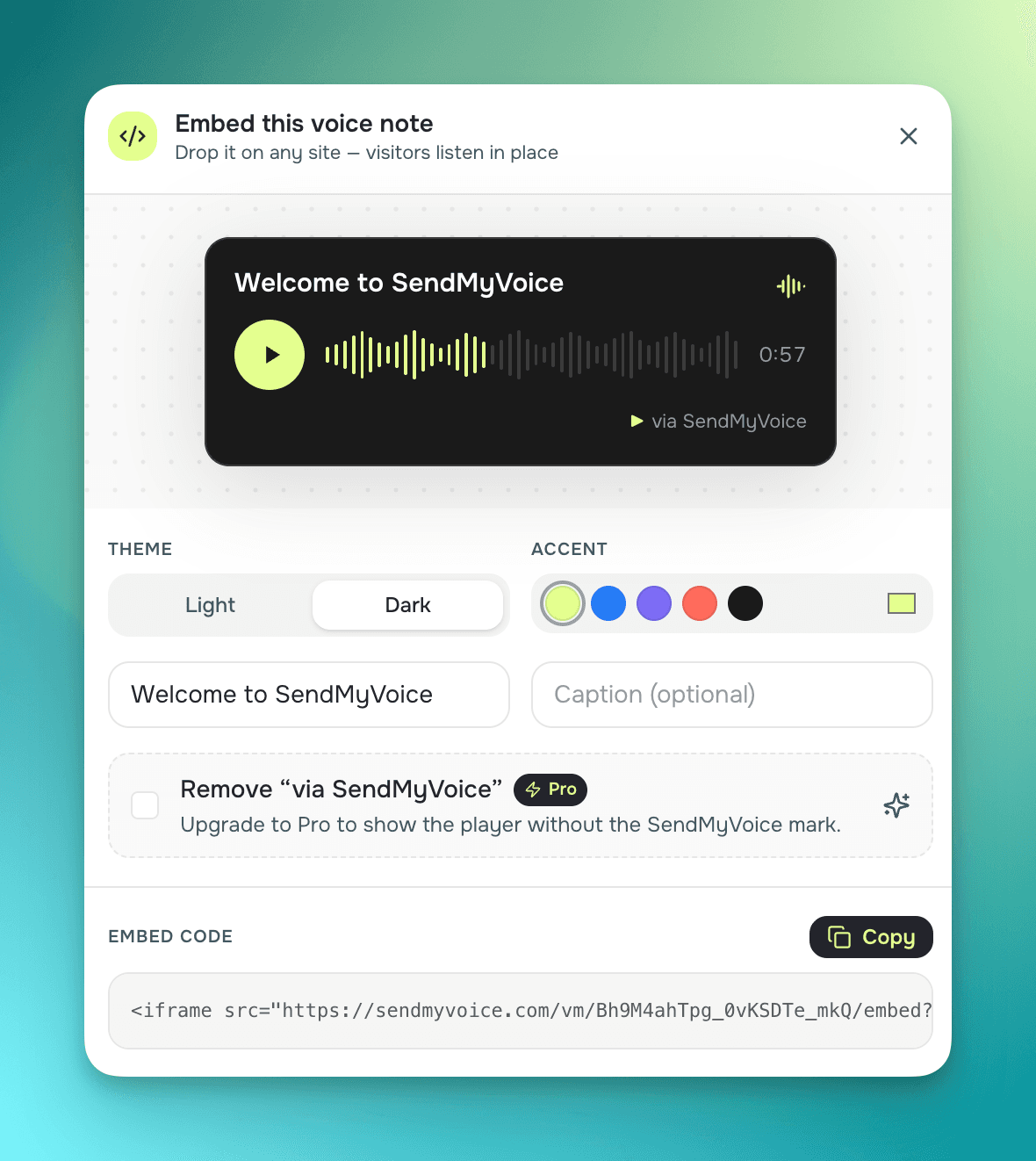
SendMyVoice records in your browser, hosts the audio, and gives you a copy-paste <iframe> — no file to produce, upload, or manage. The player is a designed card with a waveform, play button, and your own accent color.
Get your embed code
- Record a voice note (or open an existing recording's detail page)
- Click Share, then Embed
- Customize the theme, accent, title, and caption
- Click Copy and paste the snippet into your page's HTML
If the recording isn't shared yet, opening the dialog creates the public link for you.
See it live
Here's a real SendMyVoice player, embedded on this page with exactly the kind of snippet the dialog gives you:
The snippet behind it looks like this — paste it into WordPress, Wix, Squarespace, or any site exactly as in Option 1:
<iframe
  src="https://sendmyvoice.com/vm/YOUR_ID/embed?theme=dark&accent=e3ff8f"
  width="100%"
  height="200"
  style="border:0;border-radius:16px"
  loading="lazy"
  title="Voice note">
</iframe>
Customize the player
In the embed dialog you can set:
- Theme — light or dark, to match your page
- Accent — the color of the play button and the played portion of the waveform
- Title and Caption — the text shown on the card
A live preview updates as you change these, so you see exactly what visitors will get before you copy the code.
Control the size
The snippet uses width="100%", so the player fills whatever container you drop it into. On a wide page that can stretch it further than you'd like. To keep it responsive but cap how wide it gets, add a max-width to the style — the player shrinks on small screens and stops growing past your limit on big ones:
<iframe
  src="https://sendmyvoice.com/vm/YOUR_ID/embed?theme=dark&accent=e3ff8f"
  width="100%"
  height="200"
  style="border:0;border-radius:16px;max-width:480px"
  loading="lazy"
  title="Voice note">
</iframe>
Around 180–220px of height suits the card. If you'd rather center it, wrap the iframe in a <div style="max-width:480px;margin:0 auto">…</div>.
Remove the SendMyVoice mark
By default the player shows a small "via SendMyVoice" link. On the Pro plan you can turn on Remove "via SendMyVoice" for a clean, unbranded player. On the Free plan the mark stays.
Good to know
- Audio never plays inside an email. Email apps block audio players, so for email use Copy image instead — it pastes a play button that opens the recording in the browser.
- Sizing. The snippet is responsive by default (
width="100%"). See Control the size to cap it withmax-width. - Password-protected recordings show a prompt to open the full page rather than playing inline.
- Stop sharing removes the recording's public link, and the embed stops working with it.
What's next?
- Voice notes & sharing recordings — sharing links, email, and editing
- Recording voice notes — the full recording flow