
How to Add a Multiple Choice Question to a Voice Form
Add a Dropdown or Checkboxes question with 2 to 20 options, or use Rating or Yes / No.
Add a Dropdown when people pick one option, or Checkboxes when they can tick any number of options.
Add the question
- Open Forms, click your form and click Edit. For a new form, click New voice form.
- In the outline, click Add question under a step.
- Under Choices, pick Dropdown and click Add dropdown, or pick Checkboxes and click Add checkboxes.
- Type the question in Question.
Write the options
Under Options, type the first option in Option 1. Click Add option for each one after that, and click the cross next to an option to remove it.
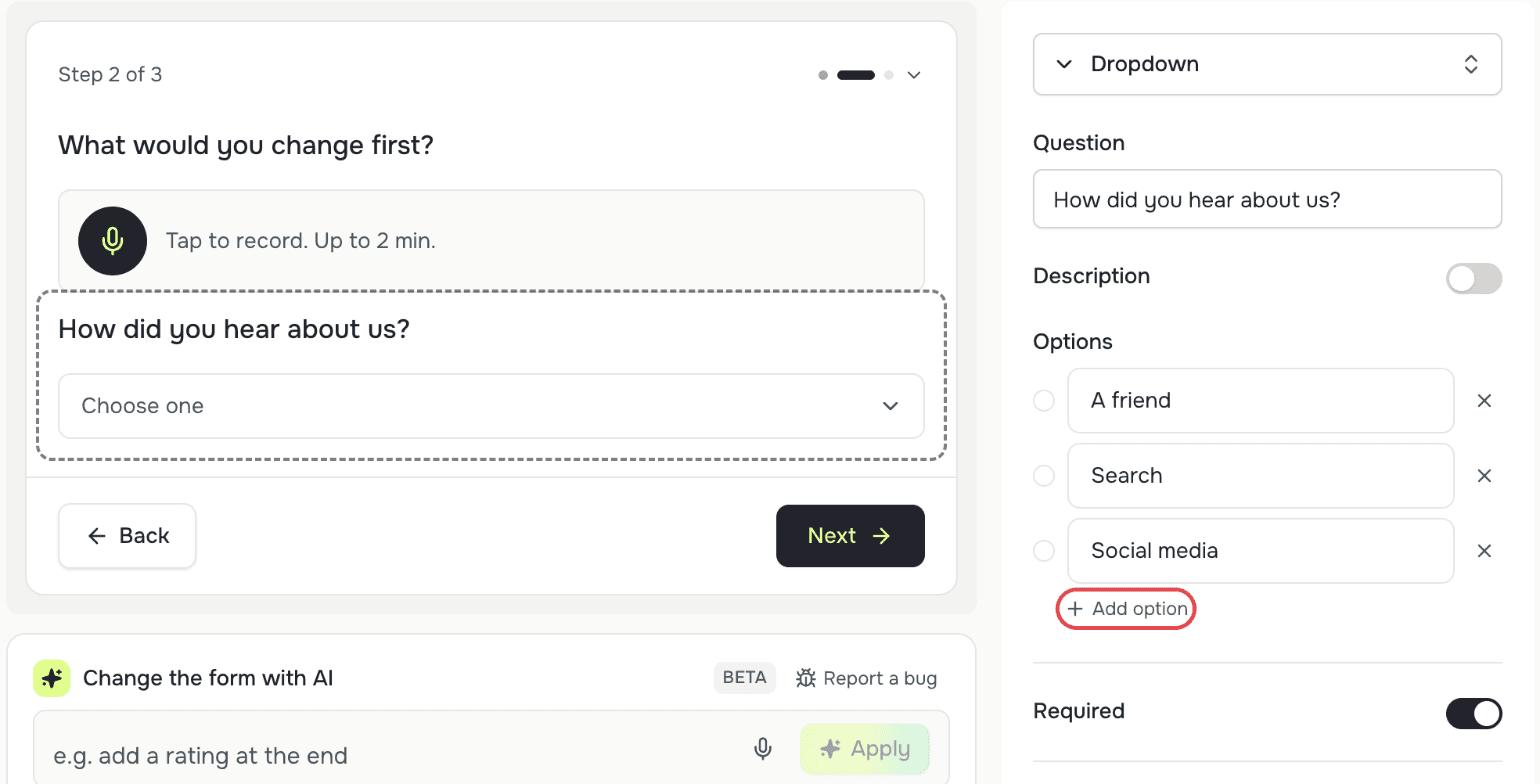
A question needs at least 2 different options, and can have up to 20. Each option can be up to 80 characters. With fewer than 2 options, you see "Add at least 2 options to the dropdown question in step 1." when you save.
On a Dropdown, people open a list that starts with Choose one and pick one option. On Checkboxes, they tick every option that applies.
Switch between Dropdown and Checkboxes
Select the question in the outline and pick the other type at the top of the settings. Your question and options stay.
Use Rating or Yes / No instead
For these two, you don't write any options.
- Rating: people pick a number. Set the Scale to 1 to 5 or 1 to 10. Under the numbers, people see "1 is lowest" and "5 is highest", or "10 is highest" on a 1 to 10 scale.
- Yes / No: people pick Yes or No.
When answers come in, click By question above your answers to see how many people picked each option. See How to Read Voice Form Answers.