
How to Let People Type or Dictate Their Answer
Add a text answer, set the longest answer in characters, and turn on Dictation for people to speak their answer.
A Text answer takes a typed answer. On a longer text answer, turn on Dictation: people speak, and their words come back as text to edit before they send.
Add a text answer
- Open Forms, click your form and click Edit. For a new form, click New voice form.
- In the outline, click Add question under a step, pick Text answer and click Add text answer.
- Type the question in Question.
To turn a question you already have into a text answer, select it and pick Text answer at the top of the settings.
Set the longest answer
Under Longest answer, type the number of characters. A new text answer allows 1,000, and you can set up to 5,000.
With 120 characters or fewer, people get a one-line box, for short facts like a job title or a city. Above 120, they get a box with several lines.
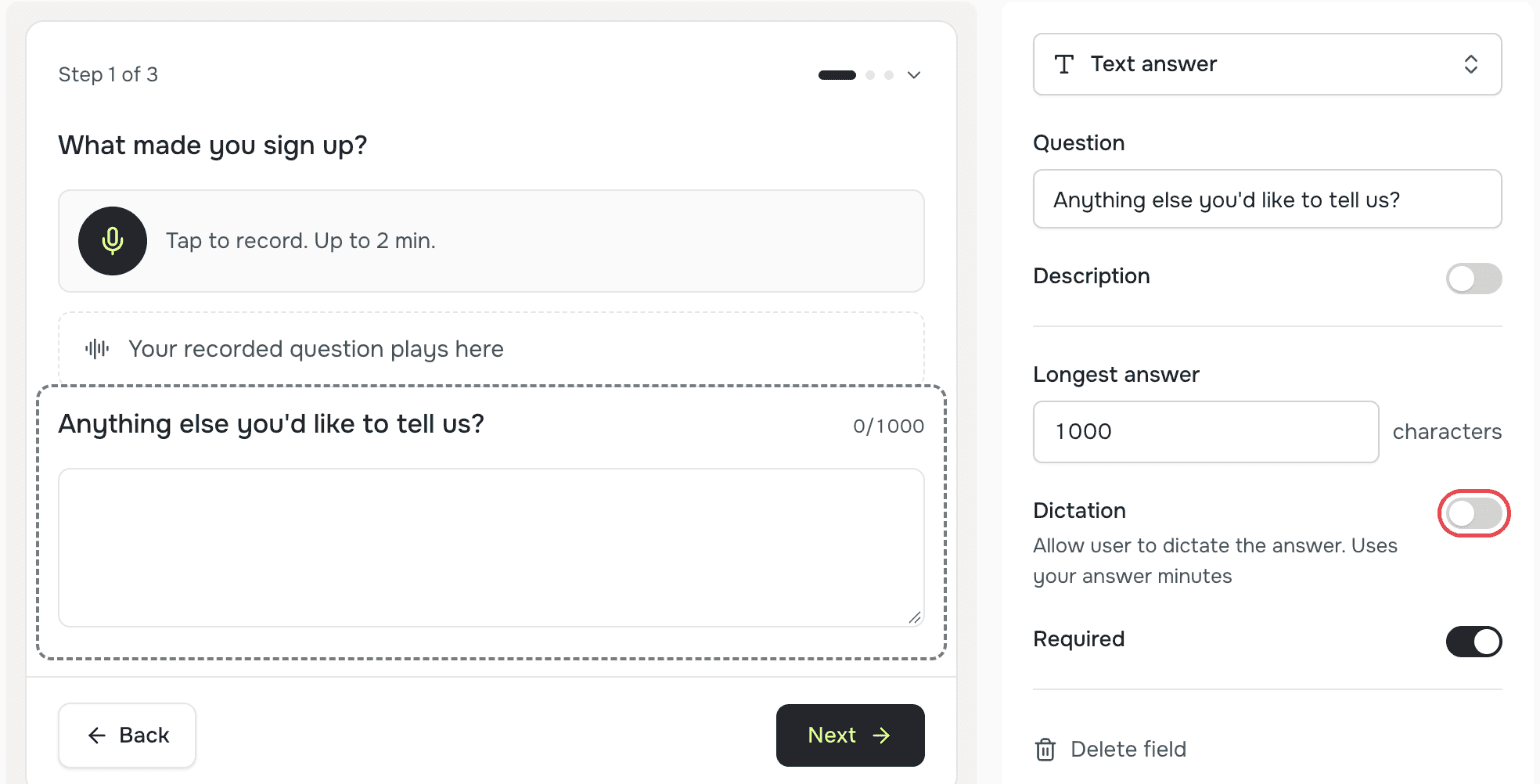
Turn on dictation
Dictation shows when Longest answer is more than 120 characters. Turn it on.
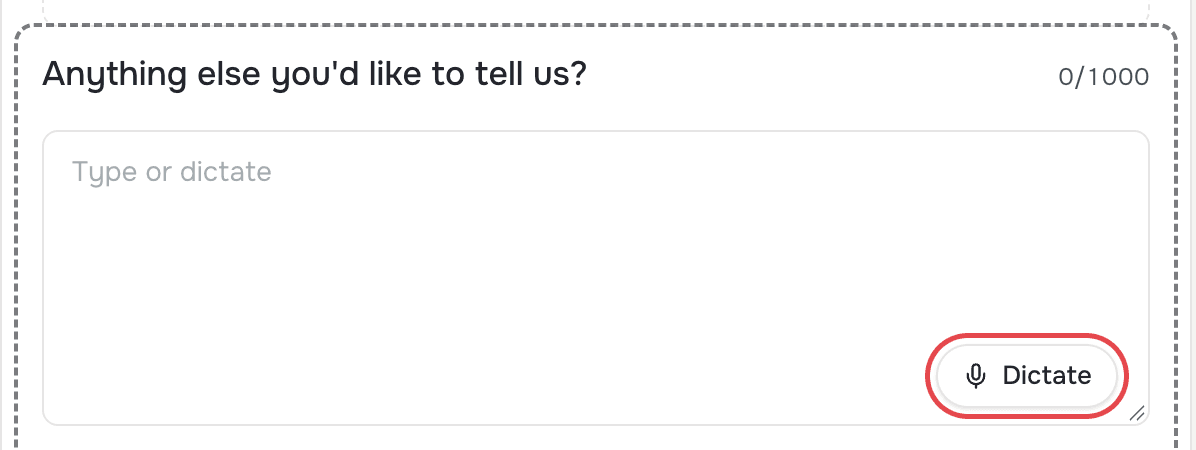
On the form, the box says "Type or dictate" and has a Dictate button. People click Dictate, talk for up to 2 minutes and click Stop. Their words appear as text where the cursor was, and they can edit the text before they send.
Recording is off in the builder preview. To try dictation, open the form from its link.
Keep track of your answer minutes
Dictation uses your answer minutes for the month, the same minutes as voice answers.
| Free | Pro | Plus | |
|---|---|---|---|
| Answer minutes a month | 30 | 600 | 1,500 |
When your minutes run out, the Dictate button goes away and people type their answer.