
How to Split a Voice Form Into Steps
Split a voice form into steps of up to 6 questions. Add, move or remove steps, and reorder questions within and between steps.
Each step is one page of your form. A step holds up to 6 questions, counting descriptions and recorded questions, and a form has up to 30 steps.
Add a step
Open your form under Forms and click Edit. At the bottom of the outline on the left, click Add step 2 (or the next number). The new step starts with one voice question.
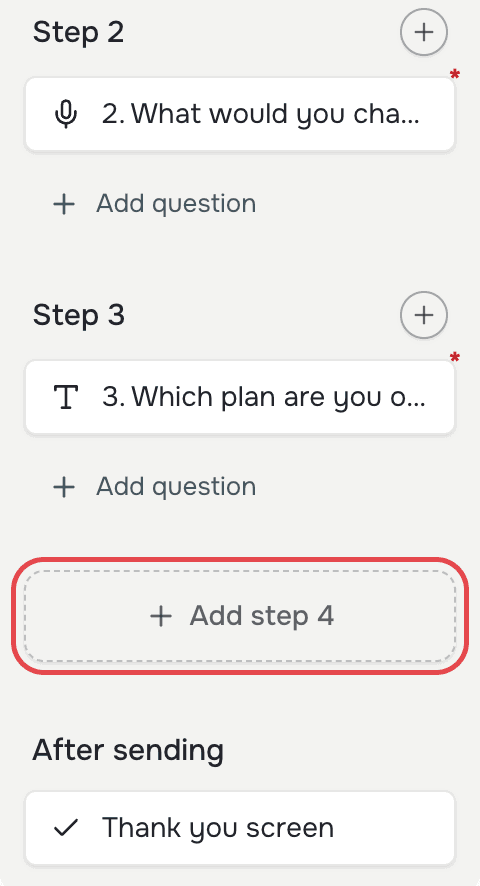
A new step's voice question counts toward your plan's question limit. The Free plan allows 3 questions per form, so once you have 3, the add step button shows Pro. Pro allows 20.
To add more questions to a step, click Add question under it. See How to Create a Voice Form.
Move or remove a step
Hover the step's name in the outline, like Step 2:
- Click the up or down arrow to move the step, with all its questions.
- Click the bin to remove the step. Its questions are removed with it.
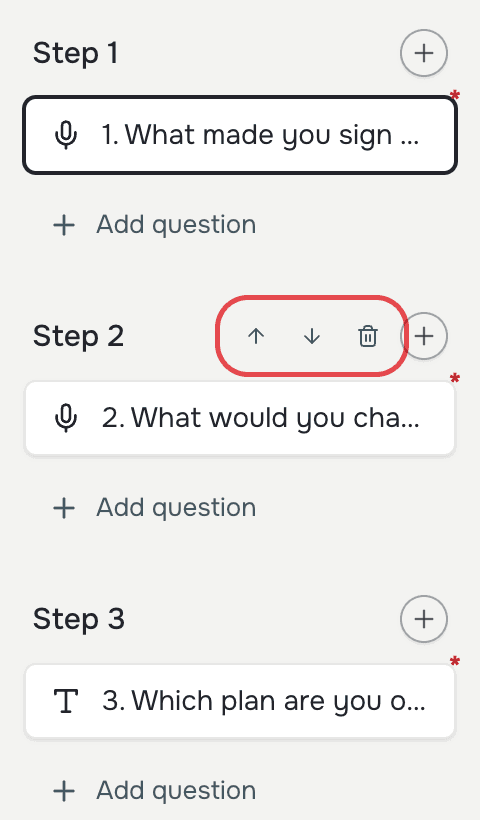
You see these buttons when the form has more than one step.
Reorder questions
To move a question within its step, hover it in the outline and click the up or down arrow.
To move a question to another step, type it in Change the form with AI under the form, for example "move question 3 to step 1", and click Apply. To put every question on a page of its own, ask "put each question on its own step". See How to Build a Voice Form With AI.
Check what people see
People see one step per screen. They click Next to go on and Back to return. On the last step, Review opens Check your answers, where they click Submit form.
On a form with more than one step, a line like Step 2 of 3 sits at the top, with a dot for each step. People can click a dot to go back to a step they've already seen.
To try the steps yourself, click Preview. See How to Preview a Voice Form.