
How to Add Your Logo and Colors to a Voice Form
Pick a look for your voice form, add your logo and brand name, set the button color and text, and remove the SendMyVoice badge.
You can choose your form's look on every plan. Your logo, brand name, button color and button text need Pro, and Pro removes the SendMyVoice badge.
To open these settings, open your form under Forms, click Edit and click Settings at the top. When you're done, click Done, then Save changes.
Pick a look
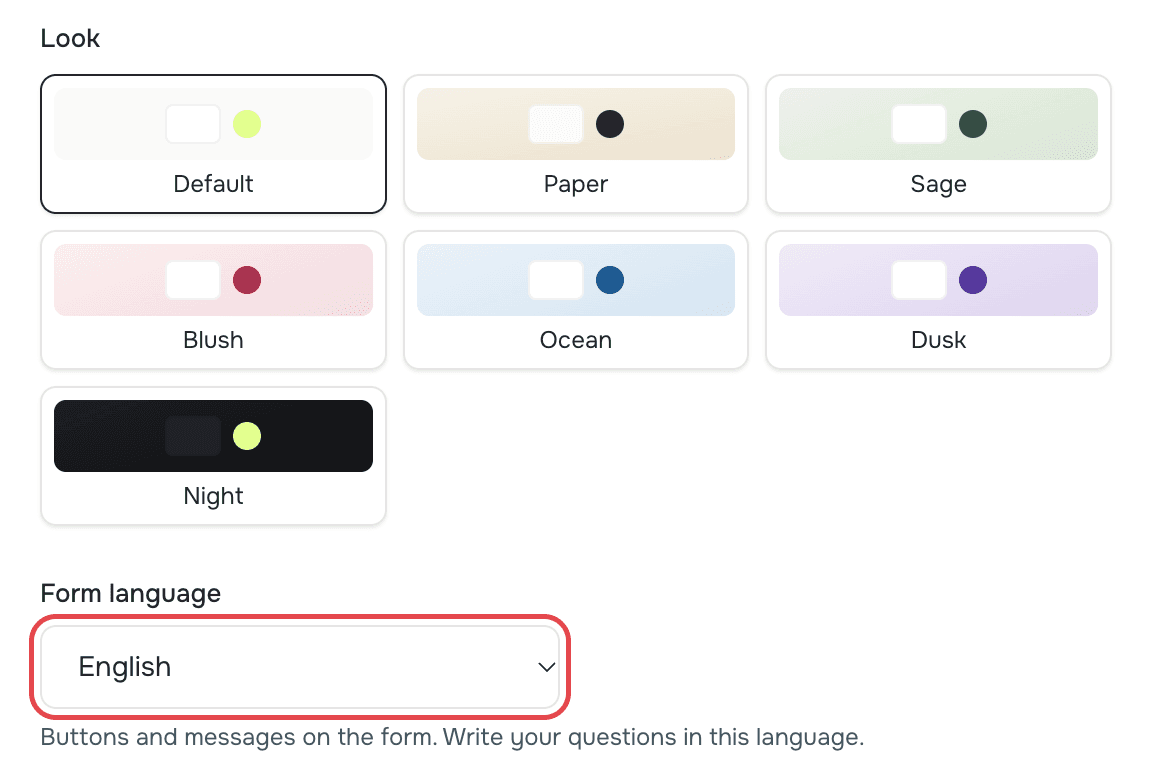
Under Look, click one of Default, Paper, Sage, Blush, Ocean, Dusk or Night. A look changes the colors of your whole form, and Paper and Blush also change the font.
Add your logo and brand name
- Under Branding, next to Logo, click Upload and choose a PNG, JPEG or WebP image up to 1 MB.
- Type your Brand name, up to 60 characters.
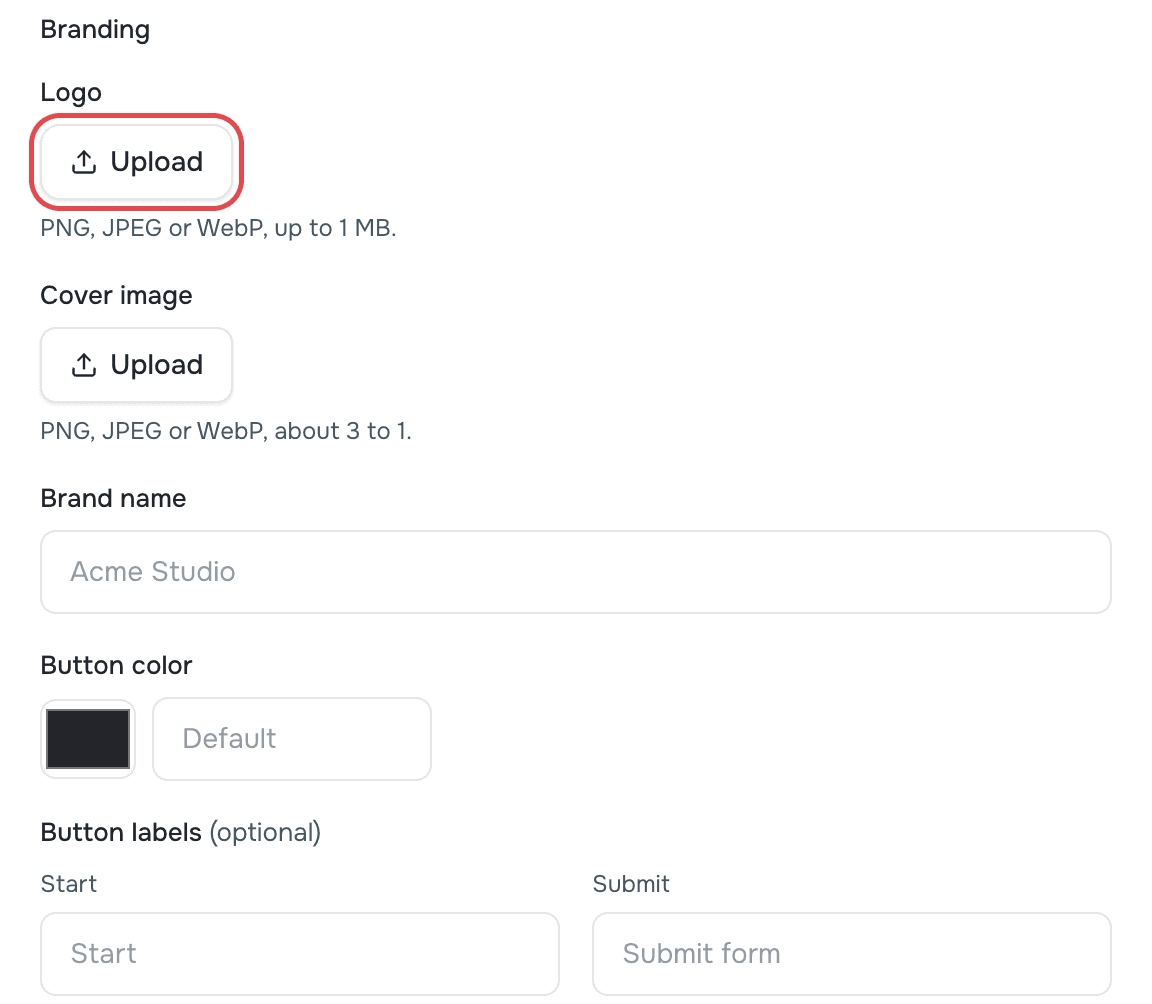
Your logo and brand name appear at the top of the form. To change the logo, click Replace. To take the logo off, click Remove.
Change the button color and text
- Button color: pick a color or type a hex value like
#e3ff8f. Your color replaces the button color of the look. Clear the field to go back to the look's color. - Button labels: type your own text for Start and Submit, up to 30 characters each. Leave a field empty to keep the default text in your form's language.
On the Free plan
Free forms show a Created with SendMyVoice Forms badge under the form. The Branding settings are greyed out, and clicking them asks you to upgrade. Upgrade to Pro to remove the badge.
If you move from Pro to Free, your form keeps its look. Your logo, brand name, button color and button text stop showing, and the badge comes back. When you then save a change to the look or another setting of the form's page, your brand name, button color and button text are removed. Your logo stays saved.
Related: Cover image, Thank you page