
How to Print QR Codes for a Voice Form
Print a QR code for your voice form as a poster, table cards or stickers, change the text, or download the QR code as a PNG.
Print a QR code that opens your form's public link. You can print on every plan.
Open the print page
- Open your form under Forms and scroll down to Share.
- Under Public link, click Turn on public link if the link is off.
- Click QR code. The print page opens in a new tab.

You also find QR code in the share window, under the public link. See How to Share a Voice Form.
Choose a layout and the text
Pick a layout at the top:
- Poster: one A4 page.
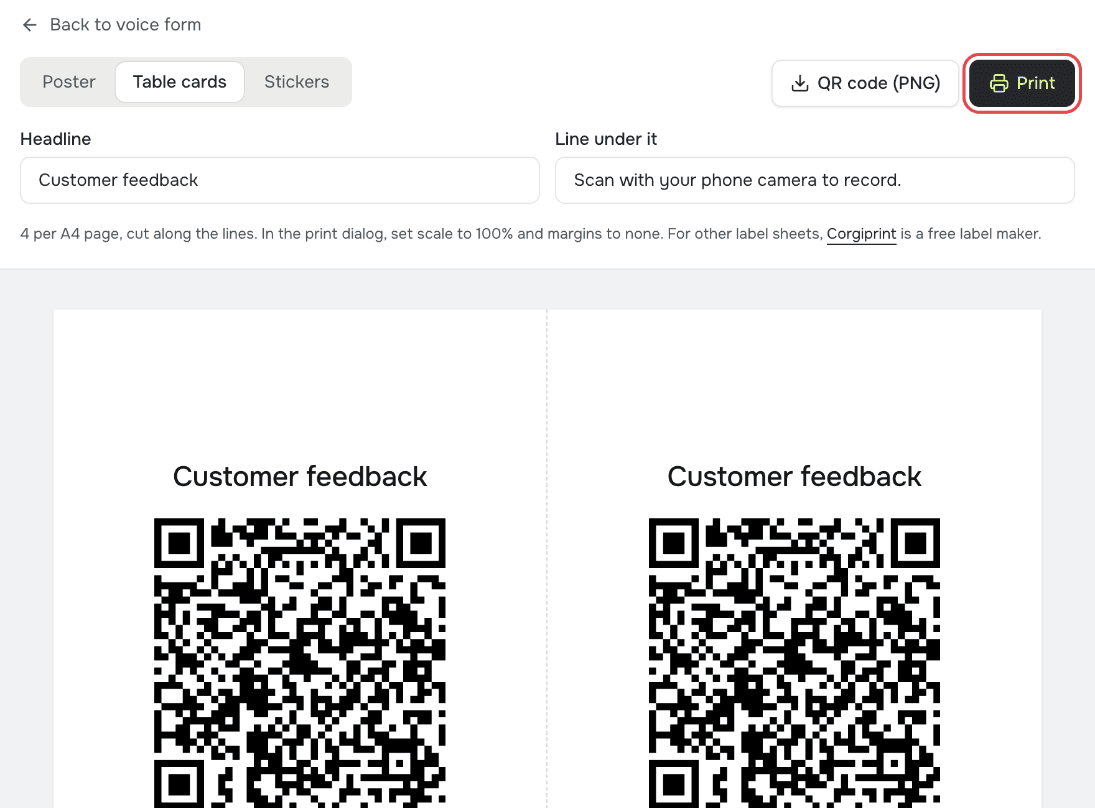
- Table cards: 4 per A4 page, cut along the lines.
- Stickers: 12 per A4 page, 63 × 72 mm.
For a poster or table cards, change the Headline and the Line under it. The headline starts as your form's title, and the line starts as "Scan with your phone camera to record." For stickers, change the Sticker text, up to 40 characters.
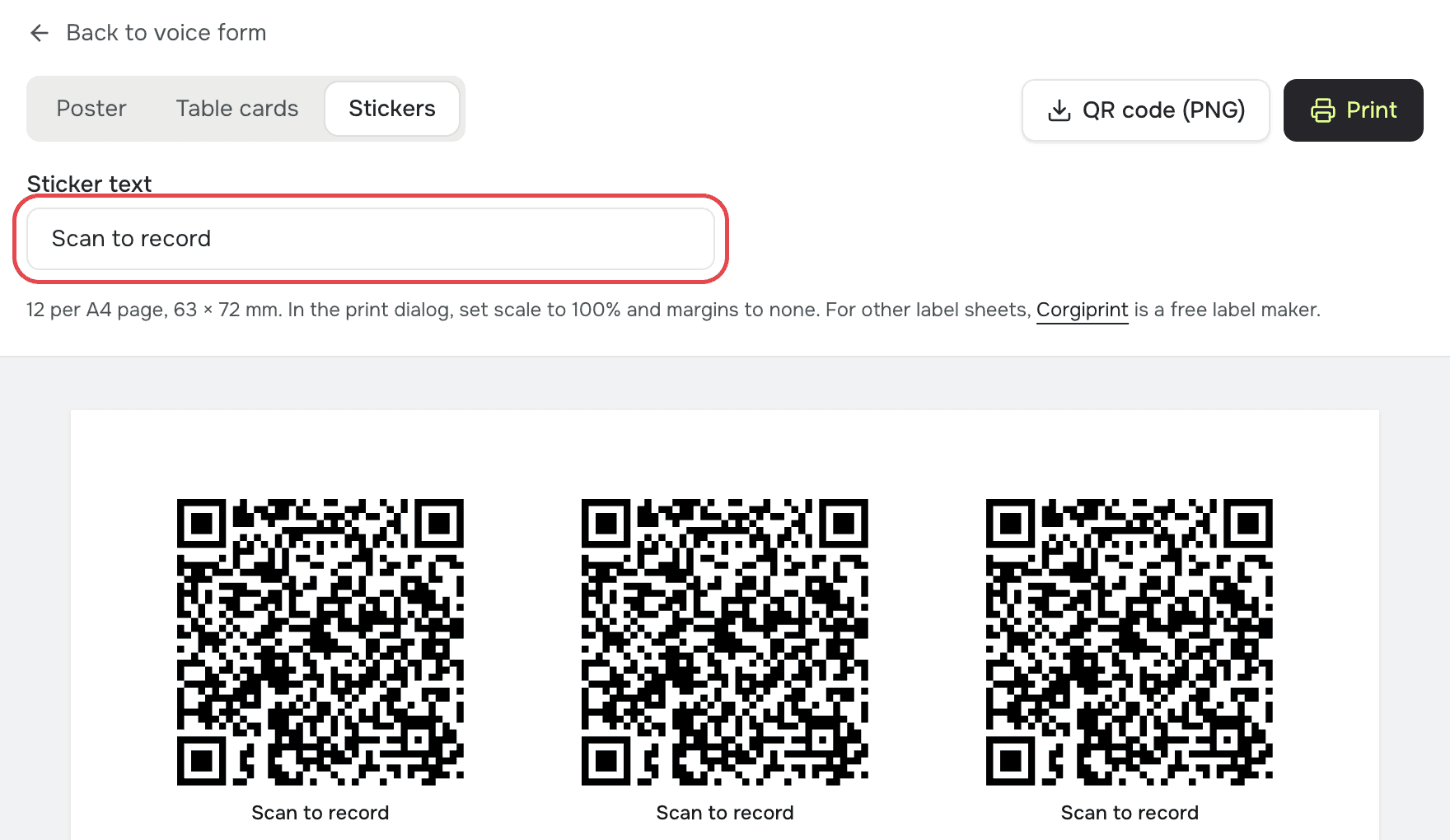
Your text isn't saved. Type it again the next time you open the print page.
On Pro, the poster and table cards show your form's logo. On the Free plan, they show a small sendmyvoice.com line instead.
Print the page
Click Print. In the print dialog, set scale to 100% and margins to none.
Download the QR code
To put the QR code in your own design, click QR code (PNG).
Keep the QR code working
The QR code opens your public link, so it works only while the public link is on. If you click Turn off under Public link, every printed code stops working. When you turn the link on again, you get a new link and a new QR code, so print again. See How to Close a Voice Form.