
How to Create a Voice Form
Start a voice form from a description, a template or a blank page. Add questions, set the answer length and save the form.
A voice form asks people your questions, and they answer by recording their voice or by typing. Their answers appear on your form's page.
Start a new form
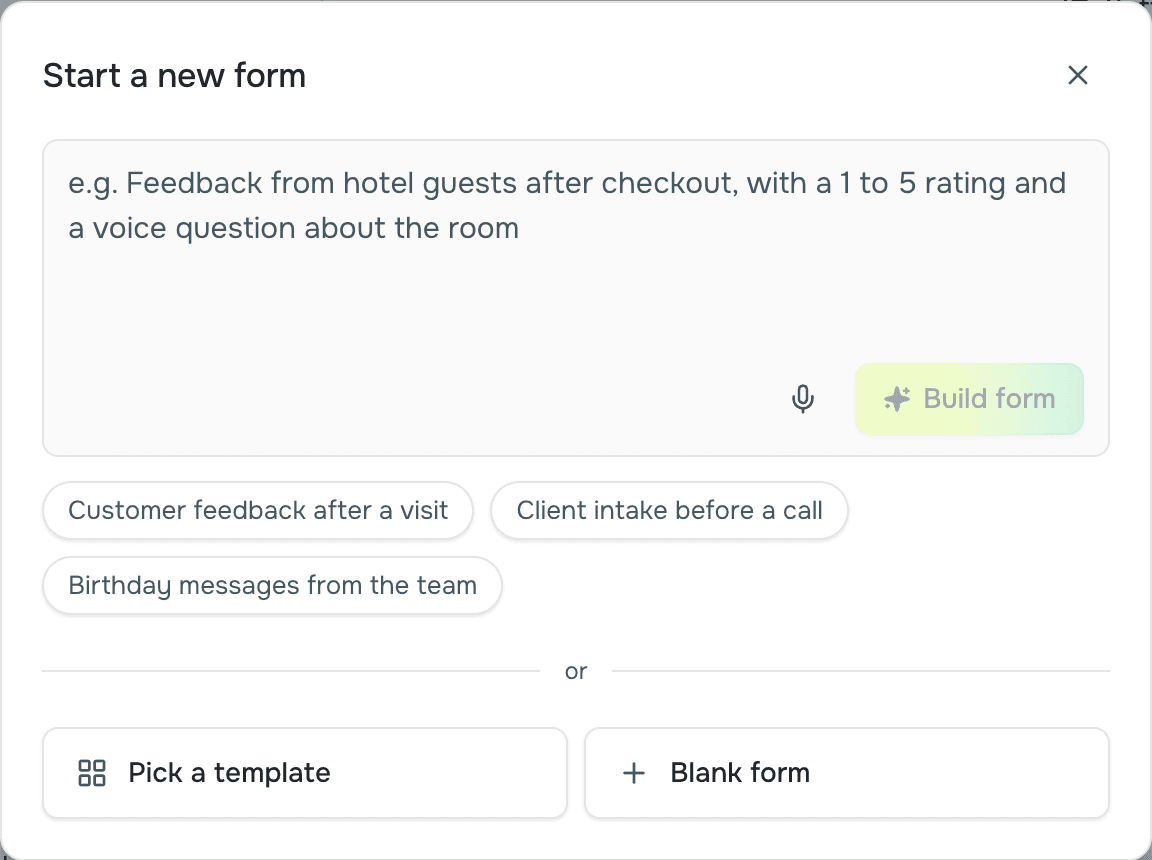
Go to Forms and click New voice form. In the Start a new form window, choose how to begin:
- Describe the form for AI: type who answers and what you want to hear, for example "Feedback from hotel guests after checkout, with a 1 to 5 rating and a voice question about the room", and click Build form. To say it instead of typing, click the microphone and talk for up to 60 seconds.
- Start from a template: click Pick a template and choose one. On the Free plan, you get the template's Free version, with no more questions than Free allows.
- Start blank: click Blank form. The form starts with one empty voice question.
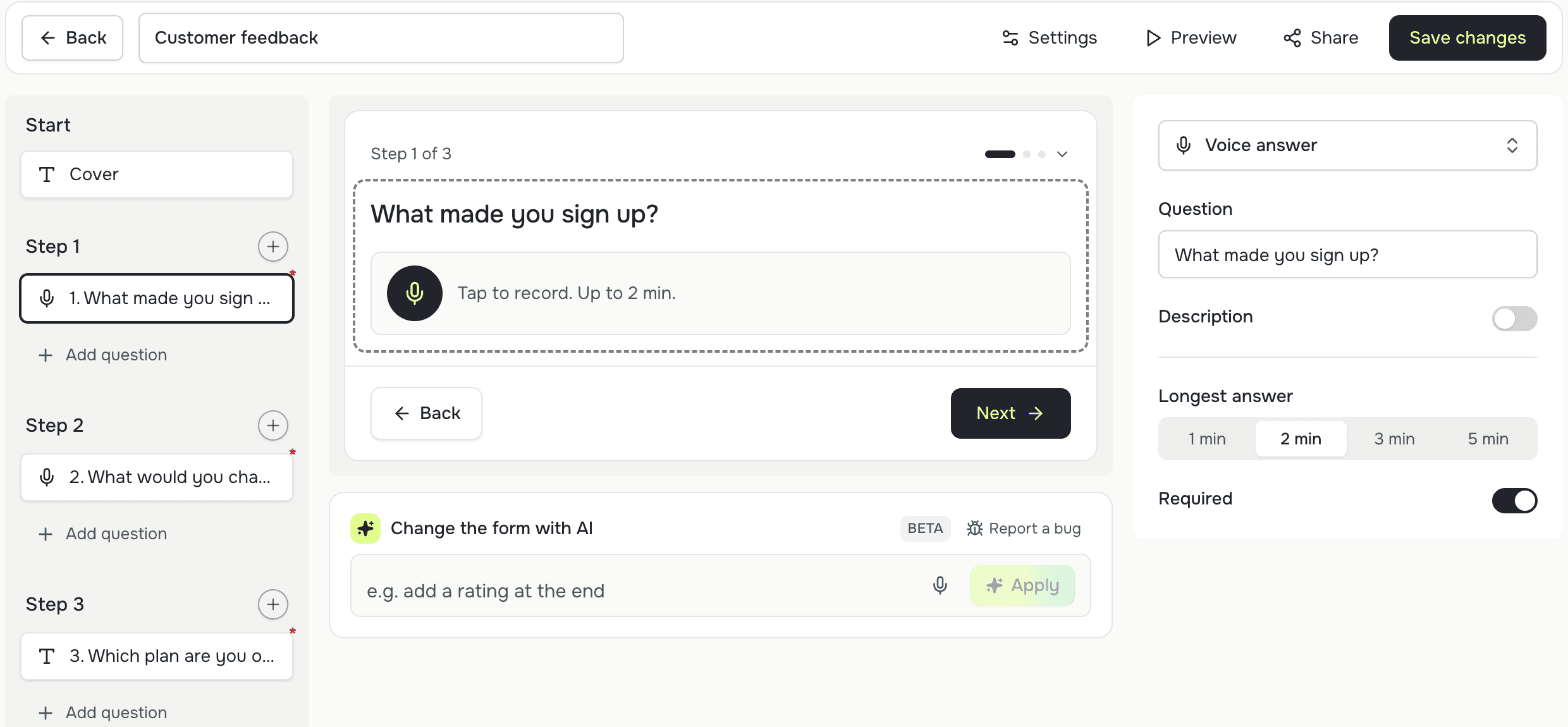
The builder opens. Type the form's title in the bar at the top.
If you already have as many live forms as your plan allows, New voice form asks you to upgrade instead. Paused forms don't count.
Add a question
- In the outline, click Add question under a step, or click + next to the step's name.
- Pick a type and click the Add button, for example Add voice answer. You can also type in Search and press Enter.
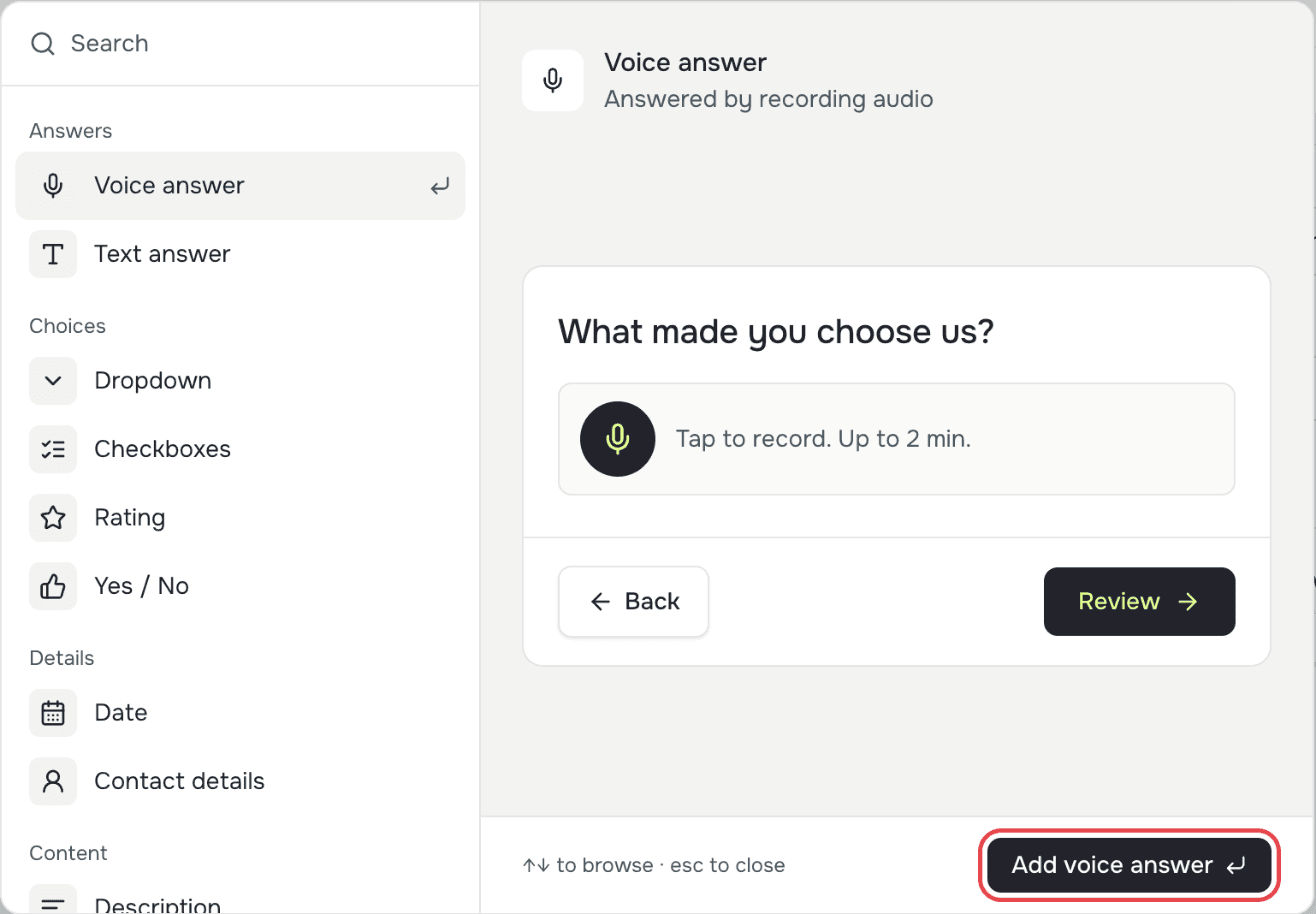
| Type | People answer by |
|---|---|
| Voice answer | Recording their voice |
| Text answer | Typing |
| Dropdown | Picking one option from your list |
| Checkboxes | Ticking any number of options |
| Rating | Picking a number, 1 to 5 or 1 to 10 |
| Yes / No | Picking Yes or No |
| Date | Picking a date |
| Contact details | Filling in their name, email, phone or company |
| Description | No answer. A paragraph of text |
| Recorded question | No answer. Your question as a recording |
A form has one Contact details question at most, and it counts as one question toward your plan's limit. Description and Recorded question don't count.
Each step is one page of the form, with up to 6 questions. To add a page, click Add step 2 (or the next number) at the bottom of the outline. A form has up to 30 steps.
Edit a question
Click the question in the outline. On the right:
- Question holds the text people read.
- The type at the top changes the question to another answer type, like Text answer or Rating. Contact details, Description and Recorded question keep their type.
- Turn on Description to add a line under the question.
- For Dropdown and Checkboxes, write the Options and click Add option for more. You need at least 2 options.
- For Rating, set the Scale to 1 to 5 or 1 to 10.
- For Contact details, choose the Details to ask for.
- Turn on Required to make people answer before they go on.
Set the answer length
For a Voice answer, pick the Longest answer: 1 min, 2 min, 3 min or 5 min. The Free plan allows 1 min. Pro allows up to 5 min.
For a Text answer, type the Longest answer in characters. A new text question allows 1,000, and you can set up to 5,000. On a longer text answer, turn on Dictation to let people speak their answer instead of typing it. Dictation uses your answer minutes.
Reorder or delete questions
- Move a question: hover it in the outline and click the up or down arrow. A question moves within its step.
- Move a step: hover the step's name, like Step 2, and click the up or down arrow.
- Delete a question: select it and click Delete field at the bottom of the settings.
- Delete a step: hover the step's name and click the bin. Do this when the question is the only one on its step.
Change the form with AI
Under the form in the middle, type what to change in Change the form with AI, for example "add a rating at the end", and click Apply. To say it instead, click the microphone.
Click Undo to take back the last change. If a change adds more questions than your plan allows, the extra questions aren't added.
Preview the form
Click Preview at the top to open the whole form in a large window. Click Close to go back to the builder.
Save the form
Click Create voice form. Your form's page opens, with the window to share the form.
To change the form later, open it under Forms, click Edit, make your changes and click Save changes. If you leave the builder with unsaved changes, you're asked first.
Plan limits
| Free | Pro | |
|---|---|---|
| Live forms | 1 | 5 |
| Questions per form | 3 | 20 |
| Longest voice answer | 1 min | 5 min |
The Plus plan allows 10 live forms, with the rest the same as Pro.