
How to Add a Recorded Question to a Voice Form
Record your question in your own voice, or upload an audio file on Pro. Free allows 3 min, Pro 5 min.
A recorded question plays your question in your own voice, with a Play button, above the questions on its step. A recorded question doesn't count toward your plan's question limit.
Add the recorded question
- Open Forms, click your form and click Edit. For a new form, click New voice form.
- In the outline, click Add question under the step.
- Pick Recorded question and click Add recorded question.
To have people answer right after they listen, add a Voice answer to the same step, under the recorded question.
Record your question
- Under Recording on the right, click Record your question and allow the microphone.
- Ask your question, then click Stop.
- Play the new recording. Click Use this recording to add it to the form, or Discard to start over.
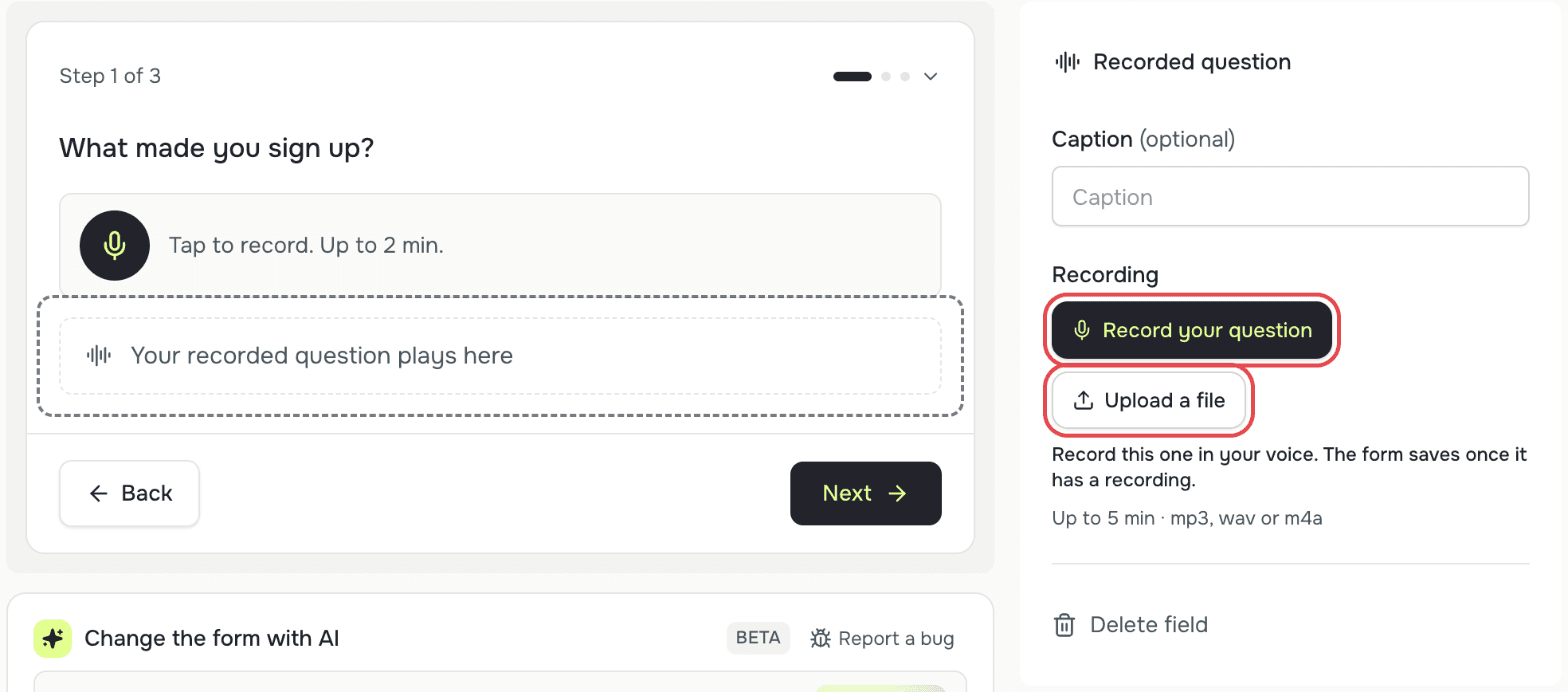
To replace the recording later, click Record again. To add a line of text above the player, type it in Caption.
The form saves only once every recorded question has a recording. If one is missing, you see "Record the question in step 2, or remove it."
Upload an audio file
On Pro, click Upload a file and pick an mp3, wav or m4a file, up to 25 MB. On the Free plan, Upload a file shows Pro and asks you to upgrade.
Keep your question within the time limit
| Free | Pro | |
|---|---|---|
| Longest recorded question | 3 min | 5 min |
| Upload a file | No | Yes |
The recording stops at your plan's limit.