
How to Password Protect a Voice Form
Add a password to your voice form's public link on the Pro plan, change or remove the password, and see what people get when they type it wrong.
Only people who know the password can answer.
Add a password
- Open your form under Forms.
- Scroll down to Share. Under Public link, click Turn on public link if the link is off.
- Type a password in Password. Use 4 to 100 characters.
- Click Save.
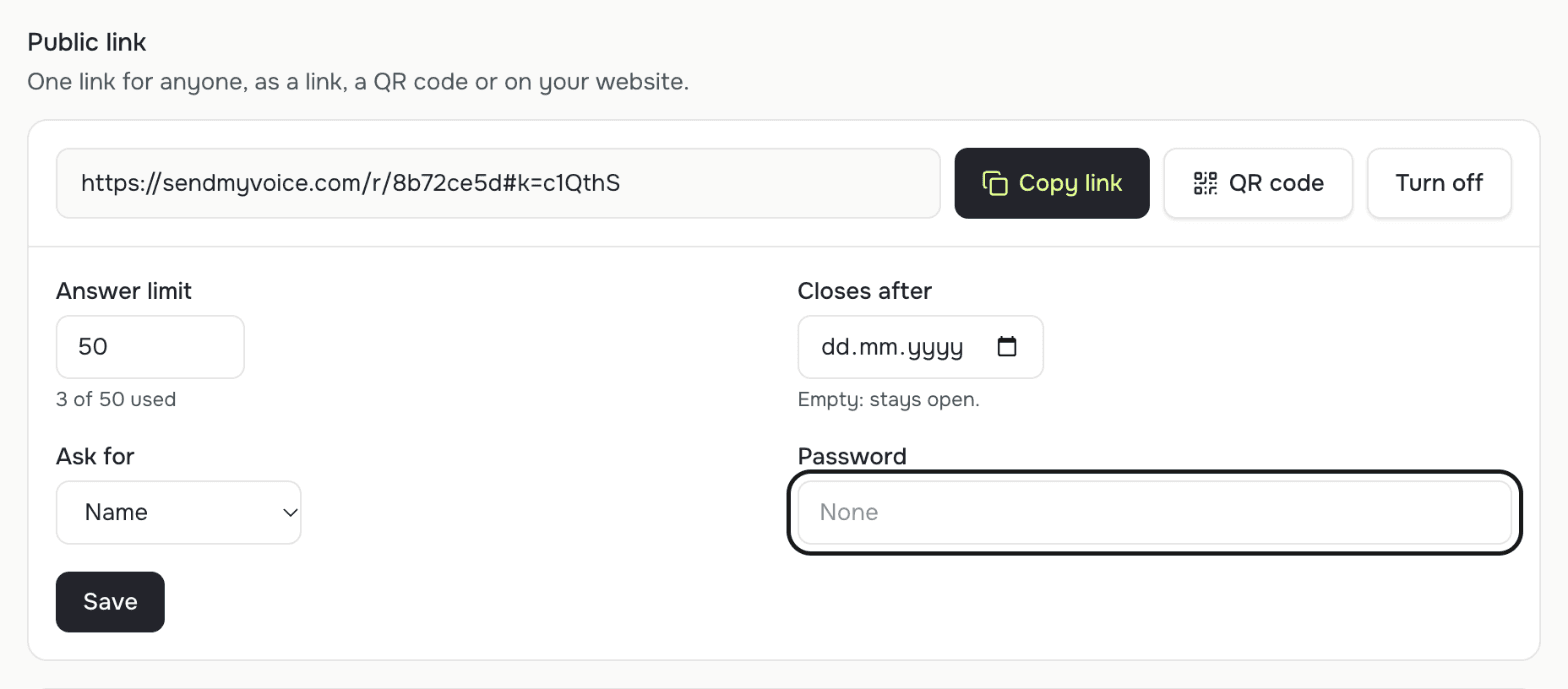
Send the password with the link, in the same message or a separate one. The QR code of the public link asks for the same password.
What people see
People who open the public link see a Password field before Start.
- A wrong password shows That password isn't right.
- After 10 wrong passwords, the form shows Too many wrong passwords. Try again in 15 minutes.
Change or remove the password
- Change it: type a new password in Password and click Save. While a password is on, the field reads Set. Type to change it.
- Remove it: click Remove password under the field.
Private links
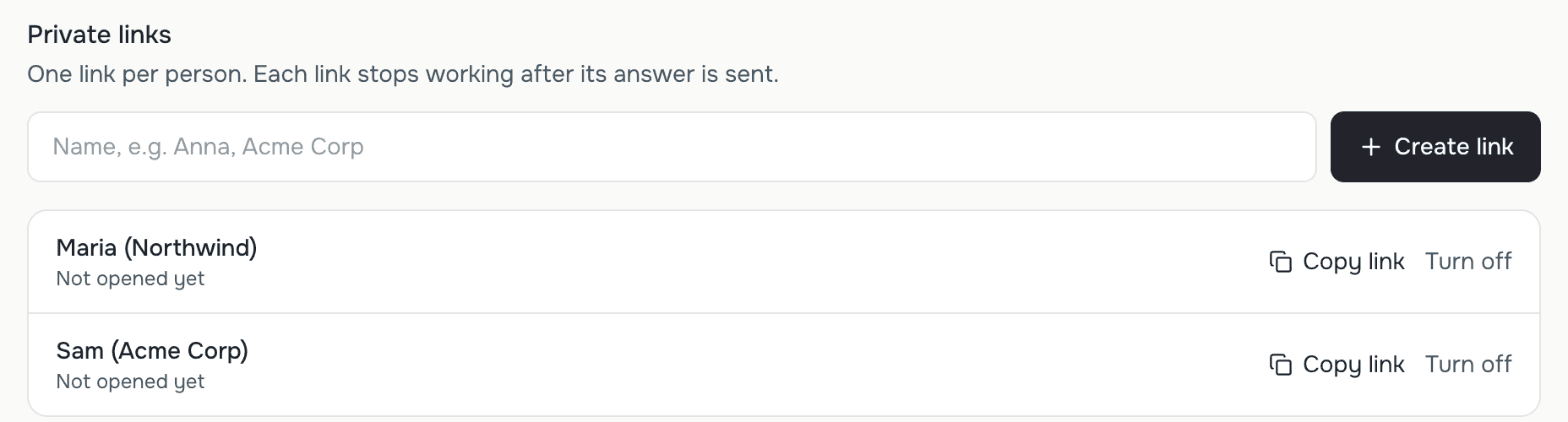
Private links never ask for a password. Each private link is for one person and stops working once their answer is sent, so nobody else can answer with it.
If you go back to Free
On the Free plan, your form opens without the password. The password stays saved and works again when you upgrade to Pro.