
How to Read Voice Form Answers
Find new answers, switch between By person and By question, mark answers as done, add private notes and approve answers waiting for your review.
Every answer to your form lands on the form's page, under Answers. Open Forms at the top of the dashboard and click your form. The number next to Forms counts your new answers and those waiting for your approval.
New answers also show on your dashboard under Needs your attention, like 2 new answers on Customer feedback. Click Review to go to the form.
Get an email for new answers
We email you when someone answers, with the subject New response to and your form's name. The email says who answered, like "Maria Lopez answered.", and Open response takes you to that answer.
You get at most one email per form every 10 minutes. When several people answer in that time, one email covers them all, like "3 new responses, the latest from Maria Lopez."
Look through the answers by person
The list shows one row per person, newest first: their name, the start of their first answer and when they answered. A green dot marks a new answer.
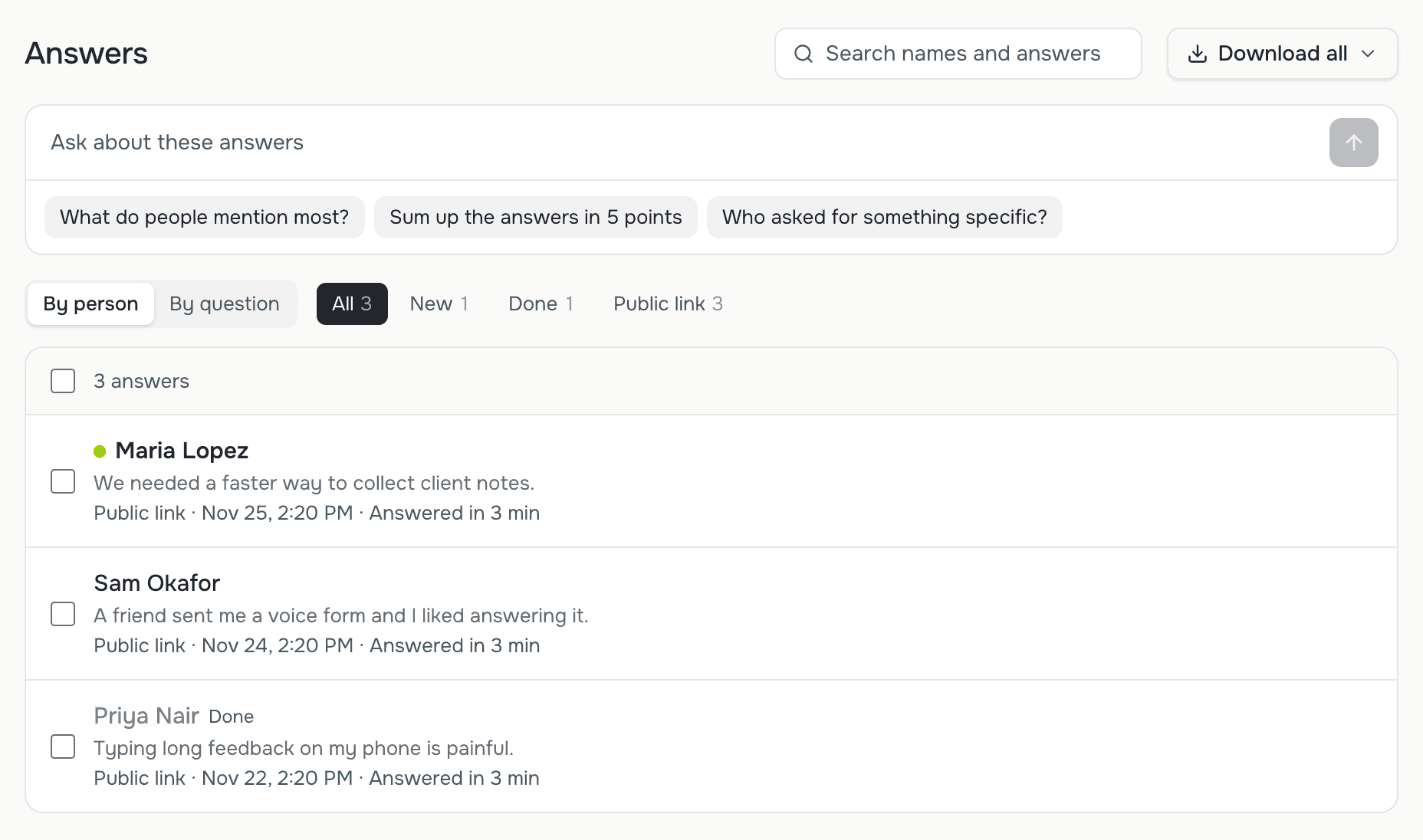
Click a filter above the list to narrow it down. Each one shows a count.
- All: every answer.
- New: answers you haven't opened yet.
- Done: answers you marked as done.
- Private links and Public link: answers that came in through that kind of link.
- To review: answers waiting for your approval. See Review answers before they go to your workflow.
To find someone, type in Search names and answers. Search looks at names, email addresses, your notes and the text of every answer.
Compare answers to one question
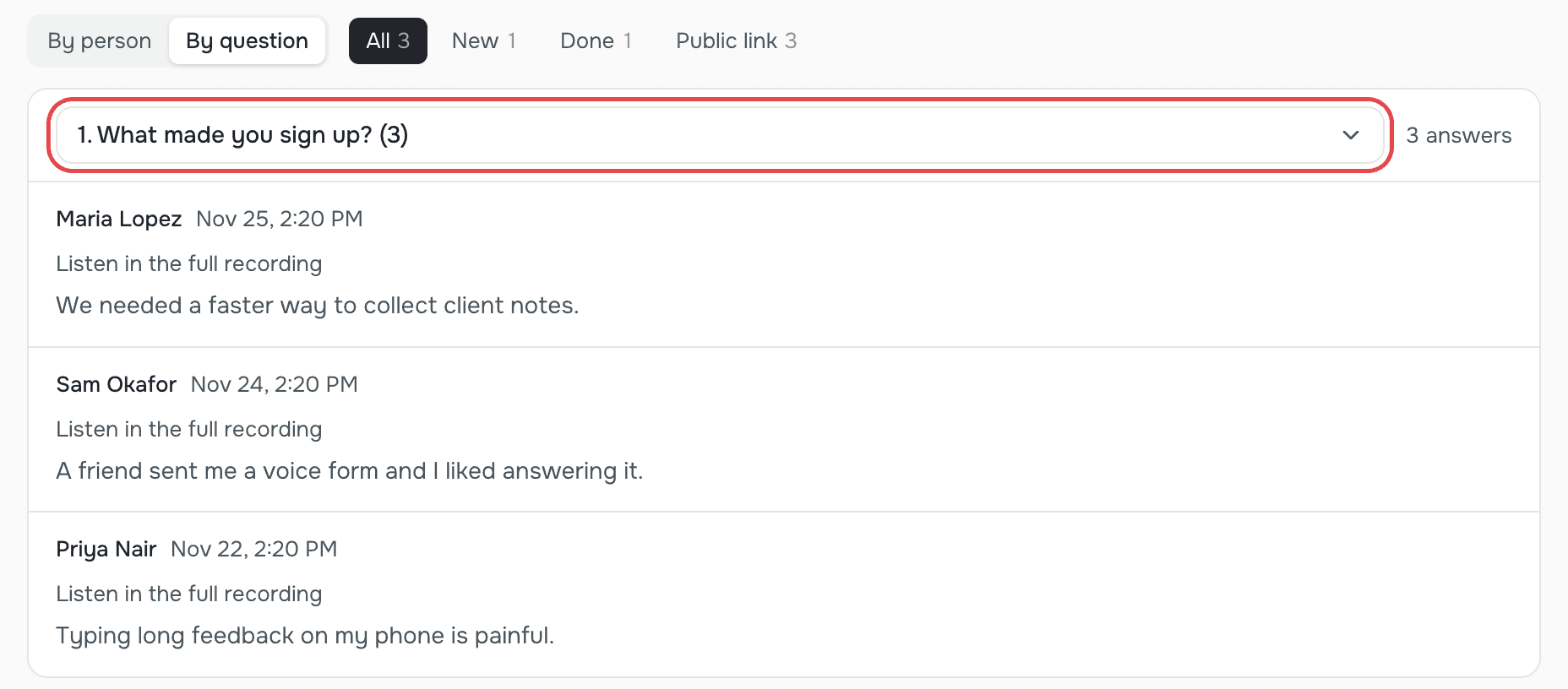
Click By question above the list, then pick a question from the menu. You see everyone's answer to that question, one under the other, and you can play spoken answers from the list.
For a rating, Yes/No or choice question, you see how many people picked each value, with a percentage. Ratings also show the average. Click a value to see only the people who picked it, and click Show everyone to see all of them again.
Click a name to open that person's answers. Click By person to go back to the list.
Open one person's answers
Click a row to open the answers over the list. Use the arrow keys to step to the previous or next person, and Escape to close. To open the answers on a page of their own, Cmd-click the row (Ctrl-click on Windows).
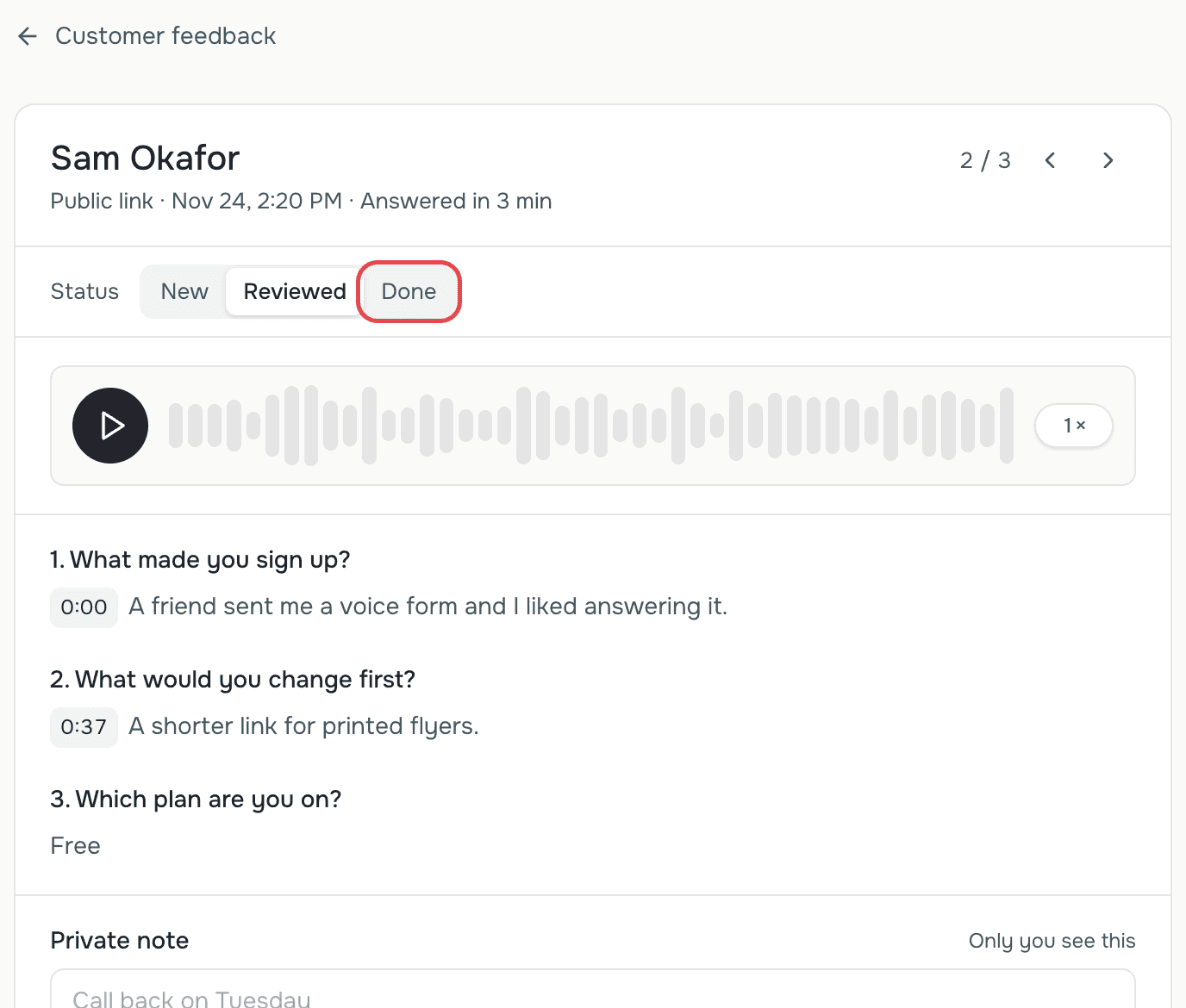
At the top you see the person's name, their email if they gave one, the kind of link, when they answered, the recording's length and how long they took to answer.
Each question is listed with its answer. Spoken answers have a player of their own and the transcript underneath. On older answers, one player holds the whole recording: click the time next to an answer to play from there.
On the page, Previous answer and Next answer at the top right step through the answers, and a count like 2 / 3 shows where you are.
Mark an answer as done
Opening an answer changes it from New to Reviewed. To change the status yourself, open the answer and click New, Reviewed or Done next to Status.
To change several at once, tick the box next to each row, click Mark as and pick a status. Shift-click a second box to tick every row in between.
Add a private note
Open an answer and type in Private note, for example "Call back on Tuesday". The note saves when you click outside the box. Only you see it, and search finds it.
Get a transcript of an answer
If your form is set to Save the recording, answers come in without a transcript. To get one, open the answer, click Recording page and click Transcribe answers. The transcript doesn't count again toward your monthly answer minutes.
To get transcripts for every new answer, open your form's settings and pick Save the recording and a transcript under For each answer.
Review answers before they go to your workflow
If your form sends answers to a workflow, you can check answers from the public link first. Under Public link, tick Review answers before they go to your workflow and click Save.
New answers from the public link then show Waiting for your review and appear under the To review filter. Your dashboard shows them as 1 answer waiting for your approval. Open the answer and click:
- Approve to send it to your workflow.
- Reject to delete it.
- Reject and block to delete it and stop the sender from opening this form again.
Delete an answer
Open the answer, click Delete at the bottom and click Delete again to confirm. The answer and its recording are gone for good.
To delete several, tick their boxes in the list, click Delete and confirm.
Next: Download your answers as a spreadsheet, or ask about your answers.