
How to Ask for Contact Details in a Voice Form
Ask for name, email, phone or company with a Contact details question, or ask for a name and email on the public link.
Ask for contact details with a Contact details question inside the form, or ask for a name and email on the public link before people start.
Add a Contact details question
- Open Forms, click your form and click Edit. For a new form, click New voice form.
- In the outline, click Add question under a step.
- Under Details, pick Contact details and click Add contact details.
A form has one Contact details question. Once you add it, the picker shows Added next to it. The question counts as one question toward your plan's limit: 3 on the Free plan, 20 on Pro.
If you leave Question empty, people see "How can we reach you?".
Choose the details
Under Details, tick Name, Email, Phone or Company. Turn on Required next to each detail people must fill in. A new question asks for Name and Email, both required. At least one detail stays ticked.
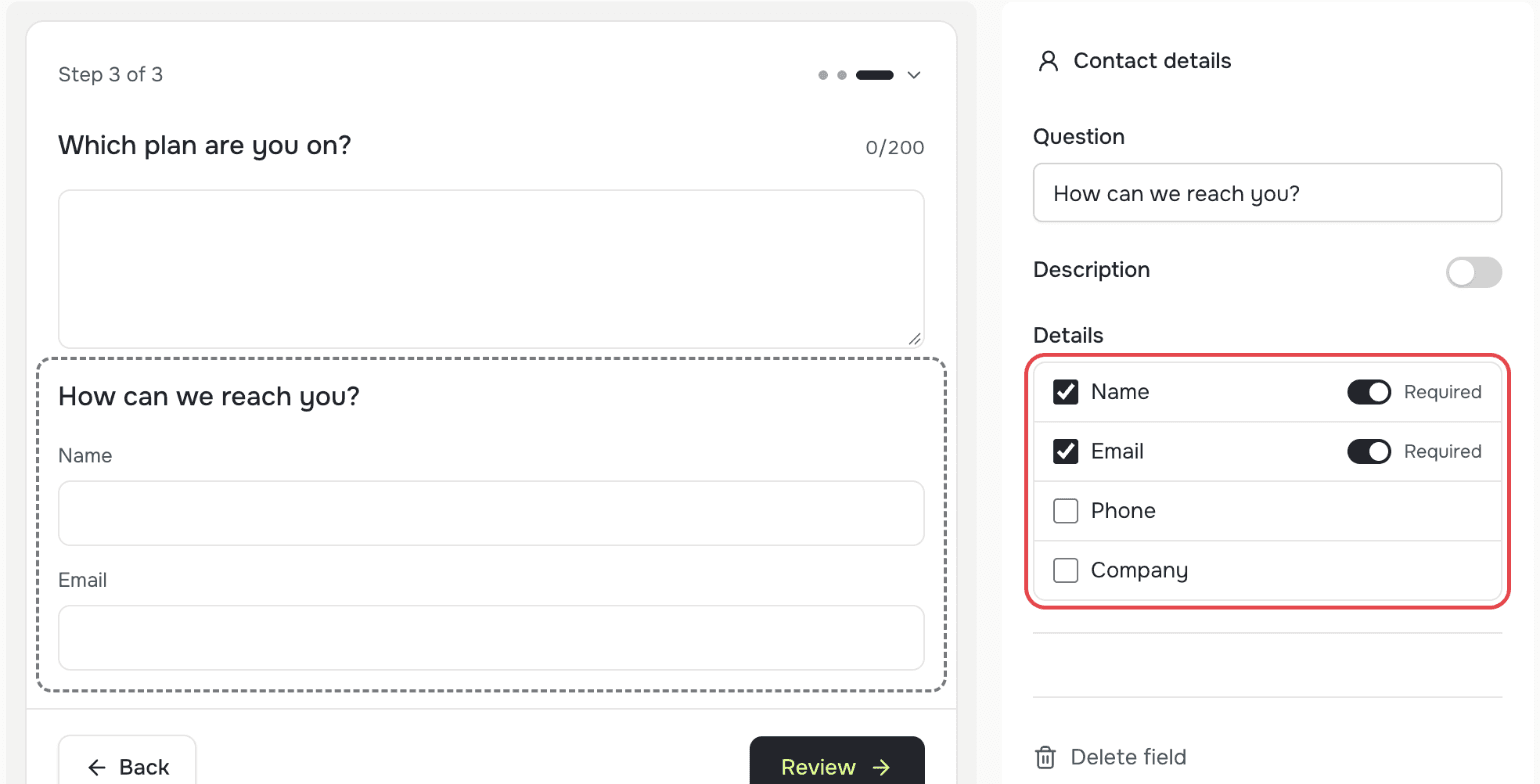
People see a box for each detail, with Optional next to the ones that aren't required. An email needs to look like a real address, and a phone number needs 6 to 20 digits. Each detail can be up to 200 characters.
Ask for a name on the public link
- Open your form under Forms and scroll down to Share.
- Under Public link, pick an option in Ask for: Nothing, Name, or Name and email.
- Click Save.
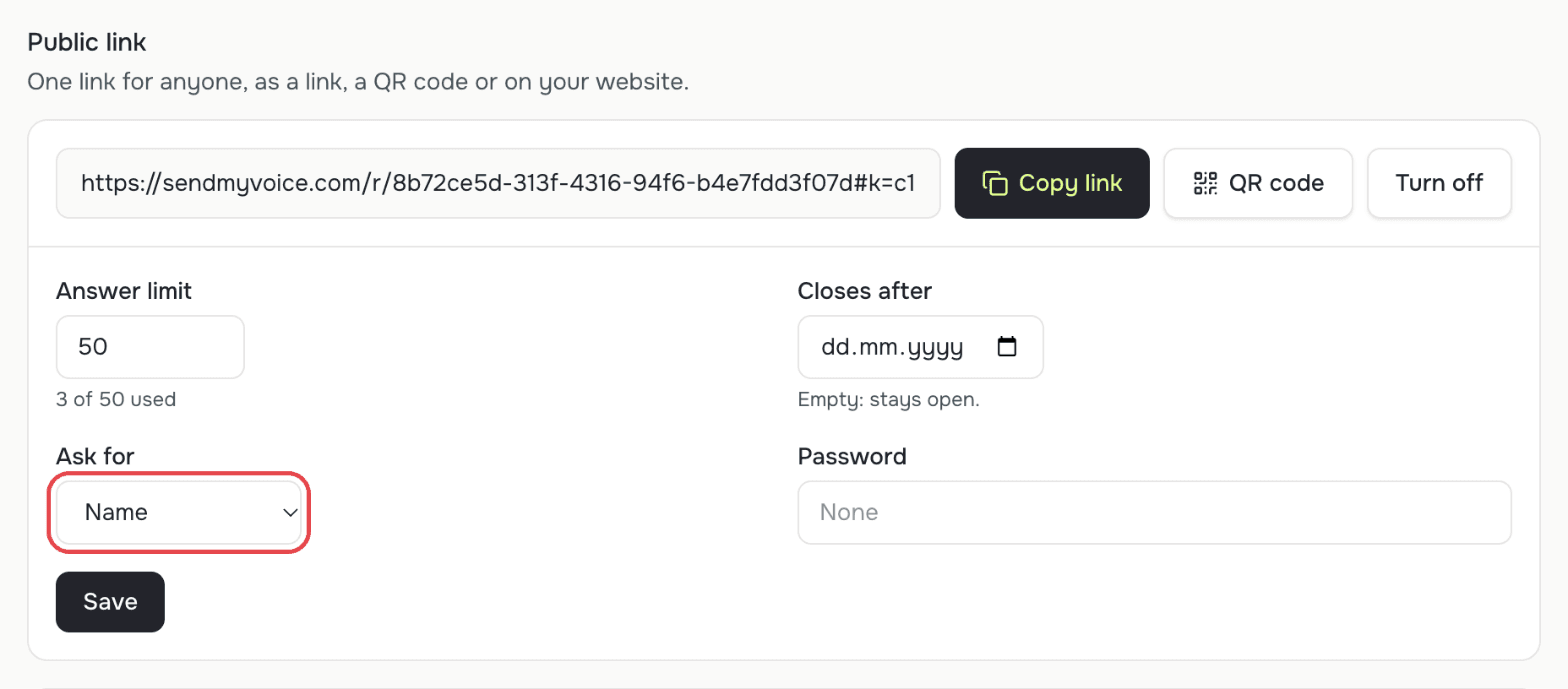
People fill in Your name, and Your email if you ask for it, before the first question. Private links don't ask for a name or email. See How to Share a Voice Form.
Find the details in your answers
- Ask for: the name shows in your answers list, and the name and email show at the top of the person's answers. When you download answers, they go in the Name and Email columns.
- Contact details: the details show under the question in the person's answers. When you download answers, each detail has its own column, like Contact email or Contact phone.
See How to Read Voice Form Answers and How to Download Voice Form Answers.