
How to Stop Spam Answers on a Voice Form
Delete spam answers, block a sender on the public link, and keep strangers out with private links, a password or an answer limit.
Spam answers come through the public link. You can delete them on every plan, and block the sender on Pro.
Delete a spam answer
Open the answer, click Delete at the bottom and click Delete again to confirm. To delete several, tick their boxes in the list and click Delete. See Delete an answer.
Block a sender
On Pro, when your form sends answers to a workflow, you can check answers from the public link before they go out.
- Open your form under Forms and scroll down to Share.
- Under Public link, tick Review answers before they go to your workflow and click Save.
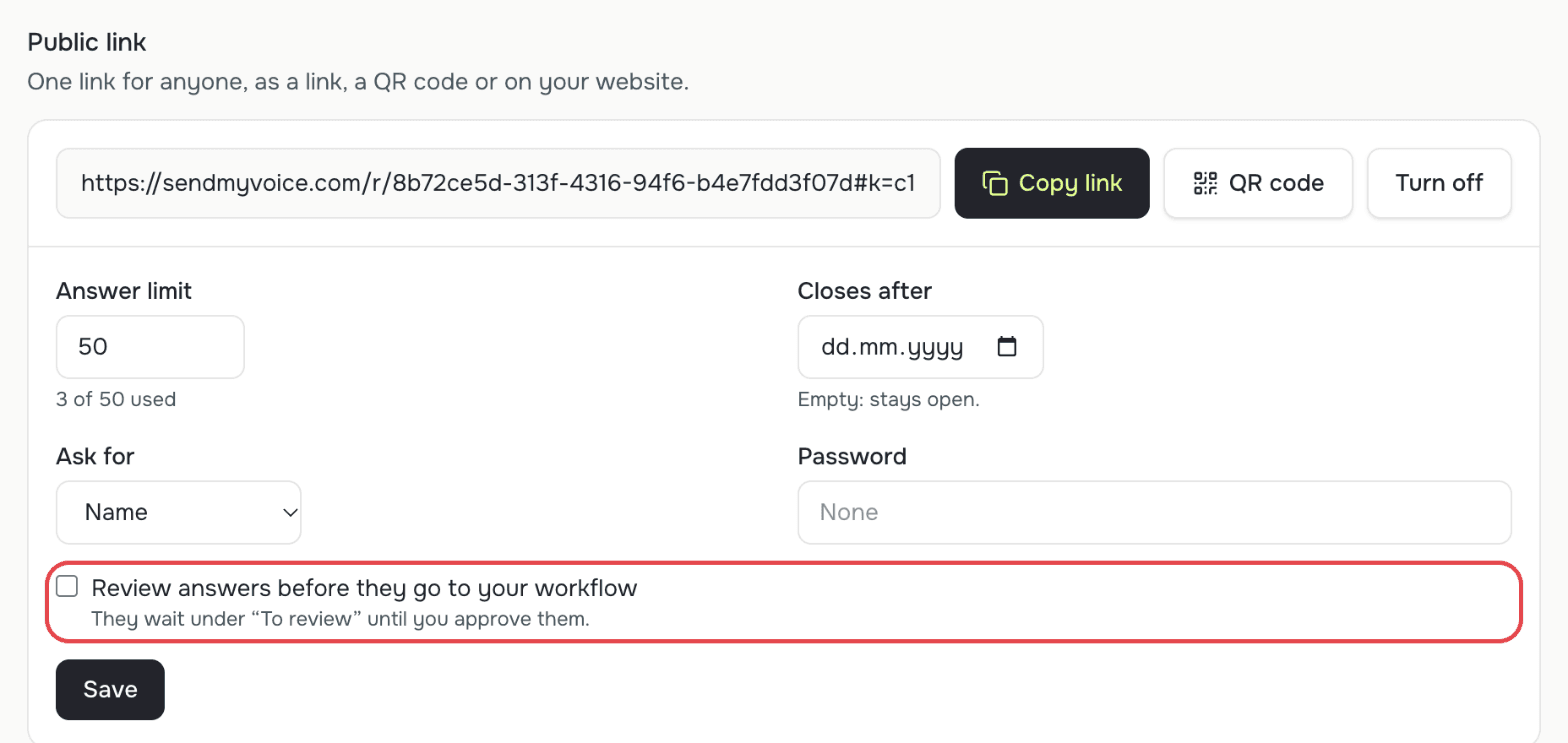
New answers from the public link wait under the To review filter. Open a spam answer and click Reject and block. The answer is deleted, and when the sender opens the public link again, they see This link doesn't work. Ask the person who sent it for a new one. Other people answer as before.
Keep strangers out
- Private links: send each person their own link and turn off the public link. A private link stops working once its answer is sent. See Send private links.
- Password: on Pro, only people with the password can open the public link. See How to Password Protect a Voice Form.
- Answer limit: the public link closes after the number of answers you set. See Close after a number of answers.