
How to Share a Voice Form
Share your voice form with a public link, QR codes you print or private links for each person, and ask for a name or email.
Share your form with a public link that anyone can open, or with a private link for each person. Answers from every link appear on your form's page.
Open the share window
After you create a form, the Your form is ready window opens. To open the share window later, click Share at the top of the builder.
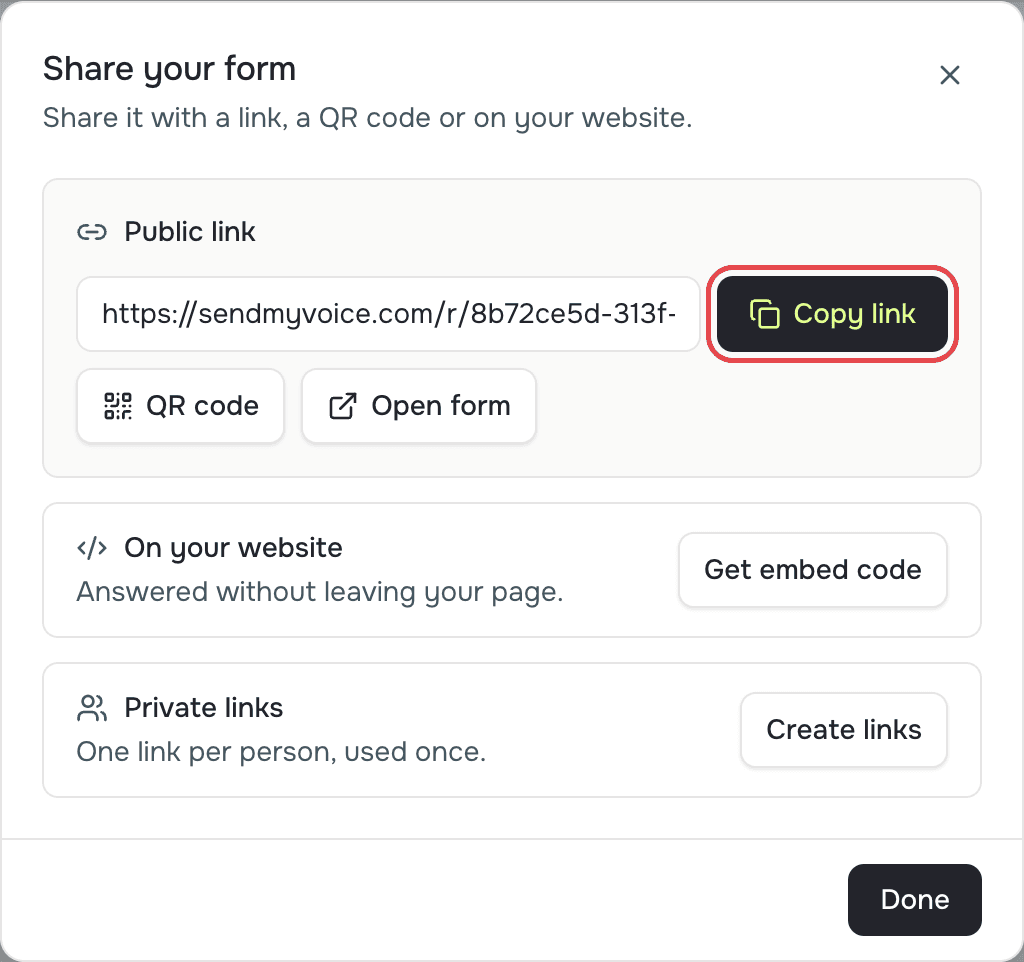
A new form starts with the public link off. Click Turn on public link to get one.
Copy the public link
- Open your form under Forms and scroll down to Share.
- Under Public link, click Turn on public link if the link is off.
- Click Copy link and paste the link into your message.
Click Open form in the share window to try the form yourself.
To stop taking answers from the public link, click Turn off. The link and its QR code stop working. When you turn the link on again, you get a new link and a new QR code. To close the form on a date or after a number of answers instead, see How to Close a Voice Form.
Ask for a name or email
On the public link, people answer without giving their name unless you ask for it.
- Under Public link, pick an option in Ask for: Nothing, Name, or Name and email.
- Click Save.
People then fill in Your name, and Your email if you ask for it, before they start. Private links don't ask for a name or email.
Print QR codes
- Under Public link, click QR code. A printable page opens in a new tab.
- Choose a layout:
- Poster: one A4 page.
- Table cards: 4 per A4 page, cut along the lines.
- Stickers: 12 per A4 page, 63 × 72 mm.
- Change the Headline and Line under it, or the Sticker text for stickers. The headline starts as your form's title.
- Click Print. In the print dialog, set scale to 100% and margins to none.
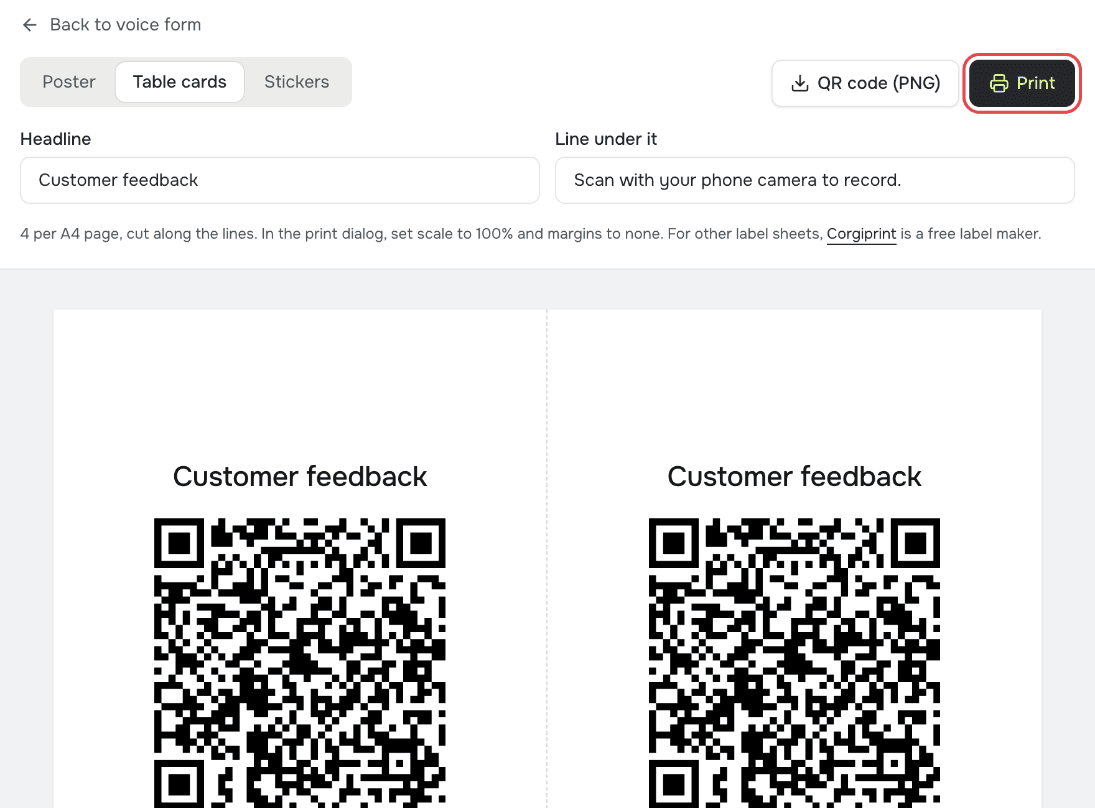
To use the QR code in your own design, click QR code (PNG). The QR code opens the public link, so it works only while the public link is on.
On Pro, the sheet shows your form's logo. On the Free plan, it shows a small sendmyvoice.com line.
Send private links
A private link is for one person. The link stops working once that person sends their answer, and you see who answered.
- Scroll down to Private links on your form's page.
- Type who the link is for, like "Maria (Northwind)", and click Create link. The new link is copied.
- Paste the link into your message to that person.
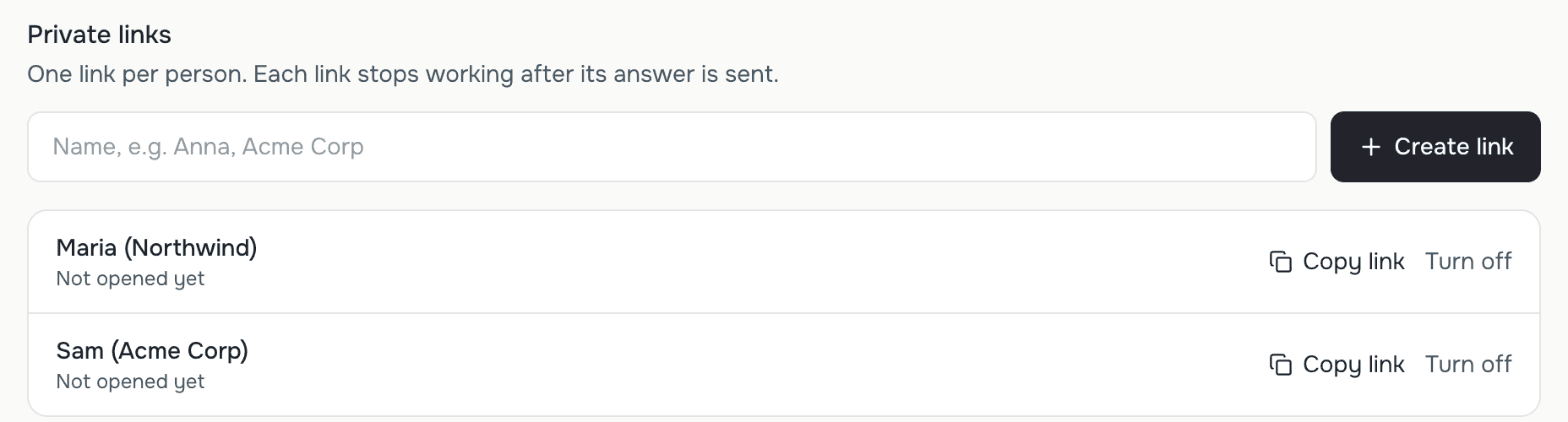
Under each name you see the link's status, like Not opened yet, Opened Nov 12, not sent yet or Answered Nov 14. Once someone answers, click Open answer to see it. To stop a link that hasn't been answered, click Turn off.
The Free plan allows 10 private links per form, including links you turned off. Pro has no limit.
Add a password
On Pro, you can ask for a password on the public link. See How to Password Protect a Voice Form.
Put the form on your website
In the share window, click Get embed code next to On your website. The website widget is part of Pro. See Add a Voicemail to Your Website.