
What to Do When People Can't Record an Answer
Fix a blocked microphone, a silent recording or a failed upload on your voice form. Each message people see, and what to tell them to do.
When recording or sending fails, the form shows a message. Find the message below and pass on the fix to the person answering.
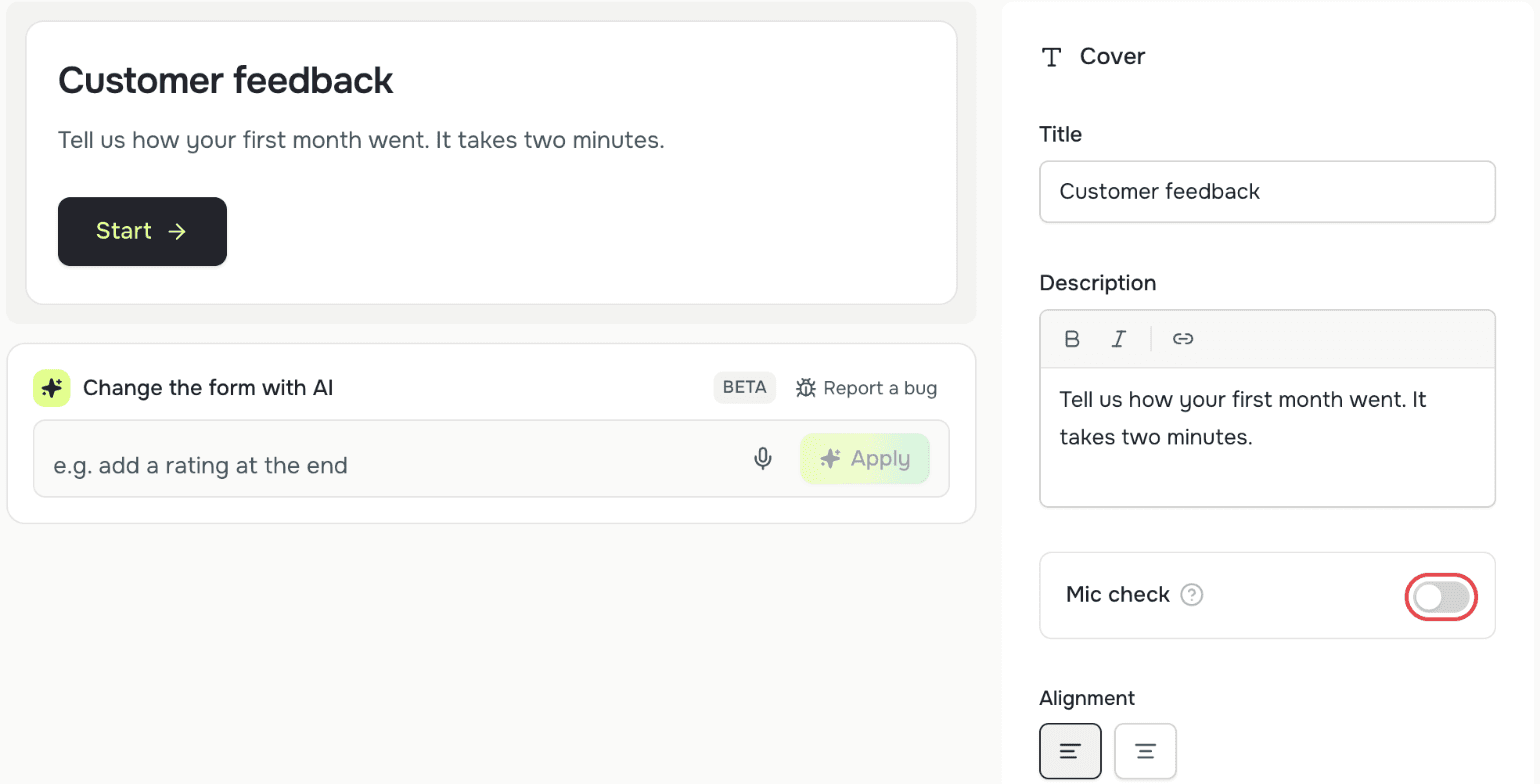
To catch a microphone problem before people start, turn on Mic check on the cover. See Microphone check.
Allow the microphone
"Microphone access is blocked. Allow it in your browser's site settings, then try again." Ask them to allow the microphone in the browser's site settings and tap the record button again.
On an iPhone or iPad, the message names their browser and device, like "The microphone is off for Safari. Turn it on in your iPhone Settings, under Safari, then reload this page." Ask them to turn the microphone on in Settings, under the browser they use, and reload the form.
On a form shown on a website, some sites don't let the form use the microphone. People then see Open in a new tab to record. Clicking it opens the form on its own page, where they can record.
Try another browser or device
"Could not access the microphone." covers the other microphone problems, like no microphone connected or a browser that can't record. Ask them to check their microphone, or to open the link in another browser or on their phone.
"This browser recorded in a format we can't use. Try another browser." The fix is another browser.
"We couldn't hear anything in this recording. Check your microphone and record it again." The recording was silent, often because the wrong microphone is picked or it's muted. Ask them to check it and click Record again.
Without a working microphone, people can't send the form. Sending needs at least one recorded answer, and the form says "Record at least one answer, then send." Dictation on a Text answer doesn't get around this, since it uses the microphone too.
Send the answer again
"Couldn't save your answer. Check your connection and try again." The recording stays on the page. Ask them to check their connection and click Next again.
"Couldn't send your answers. Check your connection and try again." shows after Submit form. Ask them to click Submit form again.
"We couldn't read that recording. Please record it again." Ask them to click Record again.
Answers are saved at each step. If someone gives up and closes the page, they can open the same link in the same browser within 7 days and carry on from the step where they stopped, with their earlier answers in place. If the page sat open too long, they see "This page was open too long and expired. Reload it to start again."
Give people more time
A recording stops at the Longest answer you set for the question, like "Tap to record. Up to 1 min." To allow more, open the form under Forms, click Edit, select the voice question and pick a longer Longest answer. The Free plan allows 1 min. Pro allows up to 5 min. See Set the answer length.