
How to Close a Voice Form
Close a voice form on a set date, after a number of answers, or right away by pausing the form or turning off the public link, and open the form again later.
You can do all of this on every plan, and the answers you already have stay in your dashboard.
| Public link | Private links | To open again | |
|---|---|---|---|
| Closes after a date | Closed | Keep working | Clear the date |
| Answer limit | Closed at the limit | Keep working | Raise or clear the limit |
| Pause | Closed | Closed | Click Resume |
| Turn off the public link | Stops working | Keep working | Turn it on again (new link) |
Close on a date
- Open your form under Forms and scroll down to Share.
- Under Public link, pick a day in Closes after.
- Click Save.
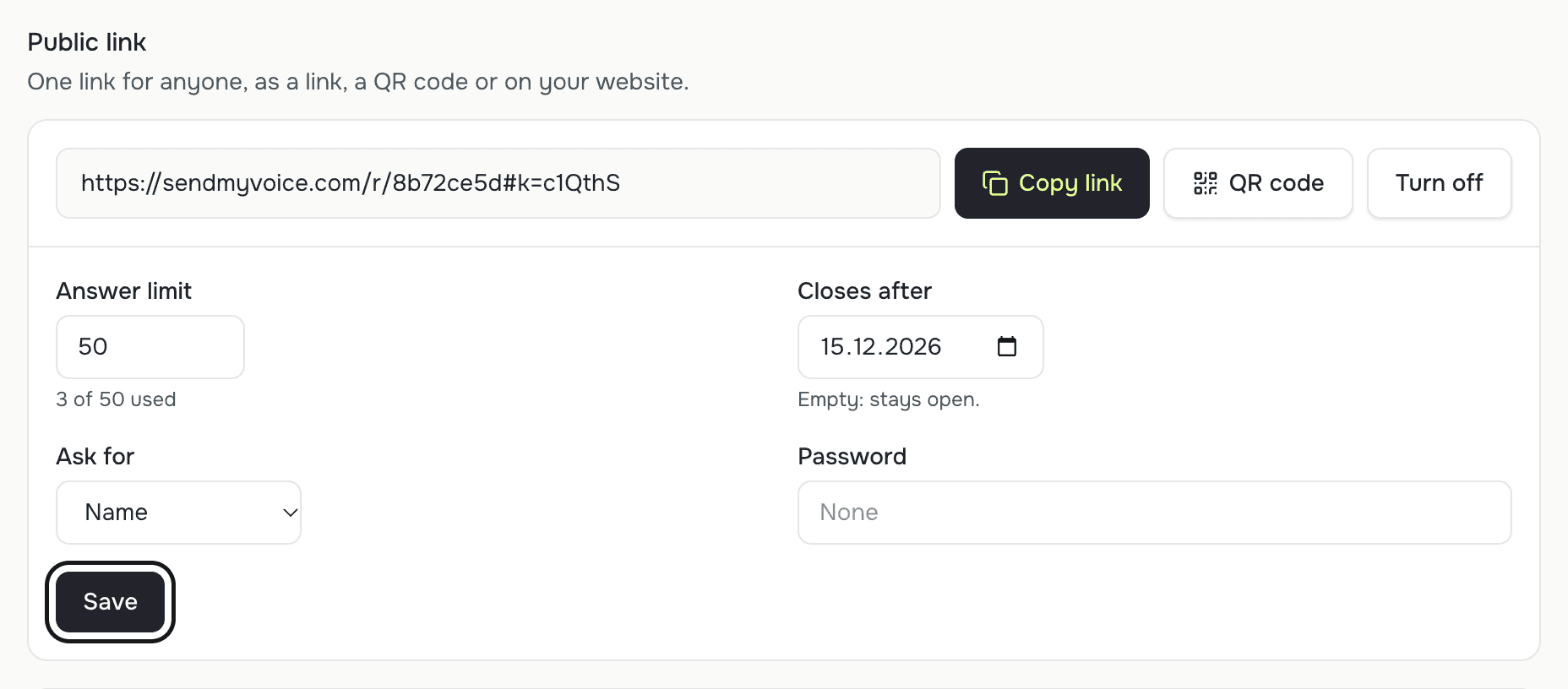
The form closes at the end of that day, in your time zone. People who open the link after that see This form is closed and doesn't take answers anymore. Anyone still answering when the day ends can't send their answers.
To open the form again, clear the date and click Save.
Close after a number of answers
- Under Public link, type a number in Answer limit, for example
50. - Click Save.
Under the field you see how many are used, like 12 of 50 used. Once the limit is reached, people see This form has all the answers it takes.
To take more answers, raise the number, or clear the field for no limit, and click Save.
Pause the form
Pausing closes every link of the form, public and private, until you resume it.
- On your form's page, click ⋯ next to Edit at the top.
- Click Pause.
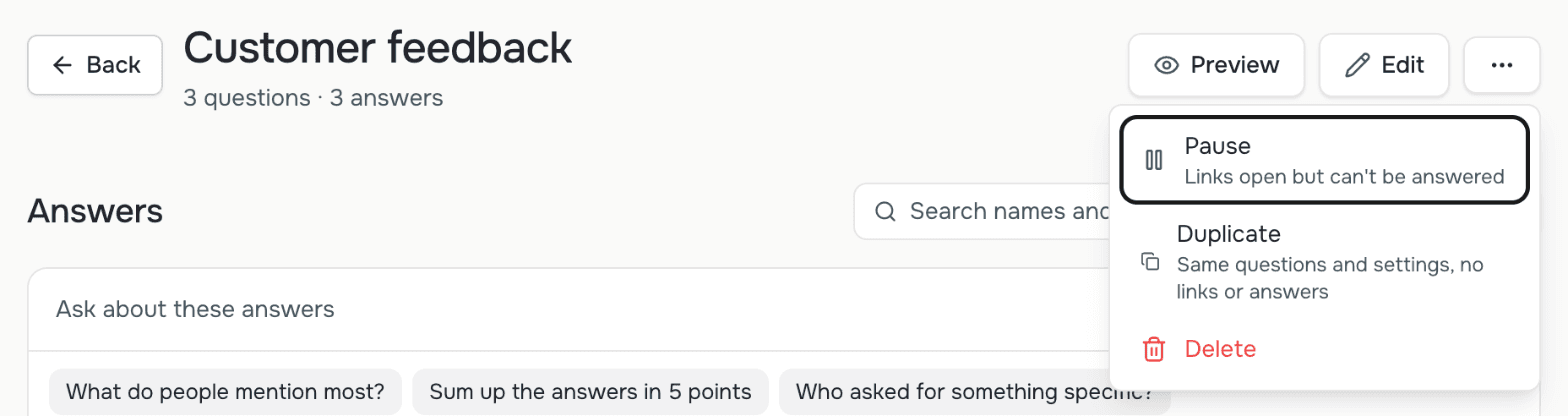
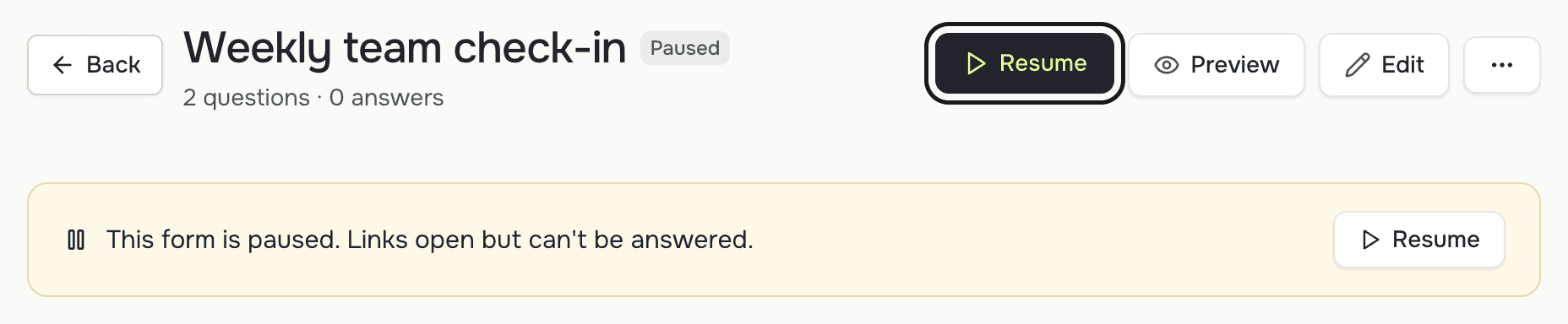
Your form's page shows This form is paused. Links open but can't be answered. People who open a link see This form is paused right now. Try again later.
To open the form again, click Resume at the top of the form's page.
On the Free plan, if your form has more questions than Free allows, or you already have as many open forms as Free allows, you're asked to upgrade first.
Turn off the public link
Under Public link, click Turn off. The link and its QR code stop working, and people see This link doesn't work. Ask the person who sent it for a new one. Private links keep working.
Click Turn on public link to start taking answers again. You get a new link, so share it again and print new QR codes.