
How to Change the Language of Your Voice Form
Show your voice form's buttons and messages in one of 38 languages, and what happens to the language after a downgrade.
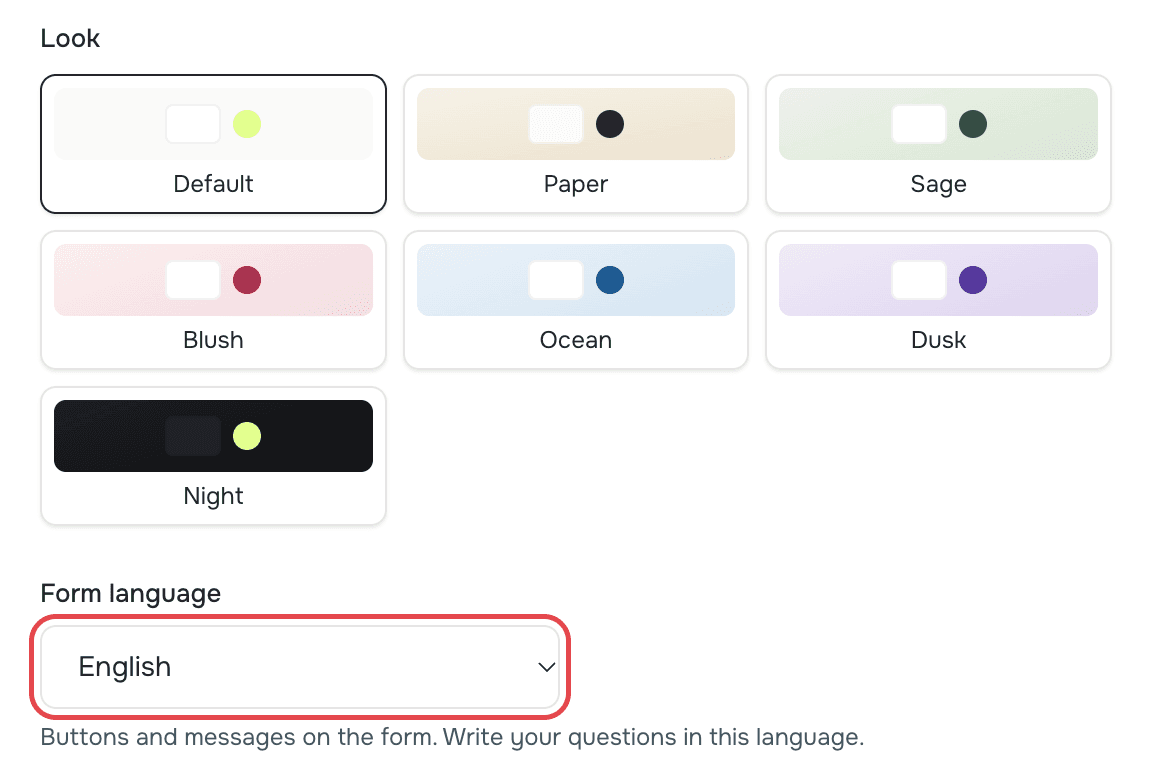
The form language sets the buttons and messages people see on your form, like Start and Submit form in English. You write the questions yourself, in the same language. Choosing a language other than English needs Pro.
Choose a language
- Open your form under Forms and click Edit.
- Click Settings at the top.
- In Form settings, pick a language in Form language. You can choose from 38 languages.
- Click Done, then Save changes.
Spoken answers are transcribed in the language each person speaks, whatever the form language is.
Keep your own button text
If you typed your own Start or Submit text under Button labels, your text stays as you wrote it when you change the language. To use the new language's text, click Use default text under Button labels. See How to Add Your Logo and Colors to a Voice Form.
On the Free plan
Form language shows a Pro badge, and choosing a language other than English asks you to upgrade.
If you move from Pro to Free, your form keeps its language. You can switch the form back to English, but to choose another language you need to upgrade again.