
How to Search and Filter Voice Form Answers
Search voice form answers by name or text, filter by New, Done or link, and mark several answers at once.
Open Forms and click your form. You search and filter in Answers on the form's page.
Search the answers
Type in Search names and answers. Search looks at names, email addresses, your private notes and the text of every answer. For answers from a private link, the name is the one you gave the link, so "Northwind" finds the answer from "Maria (Northwind)".
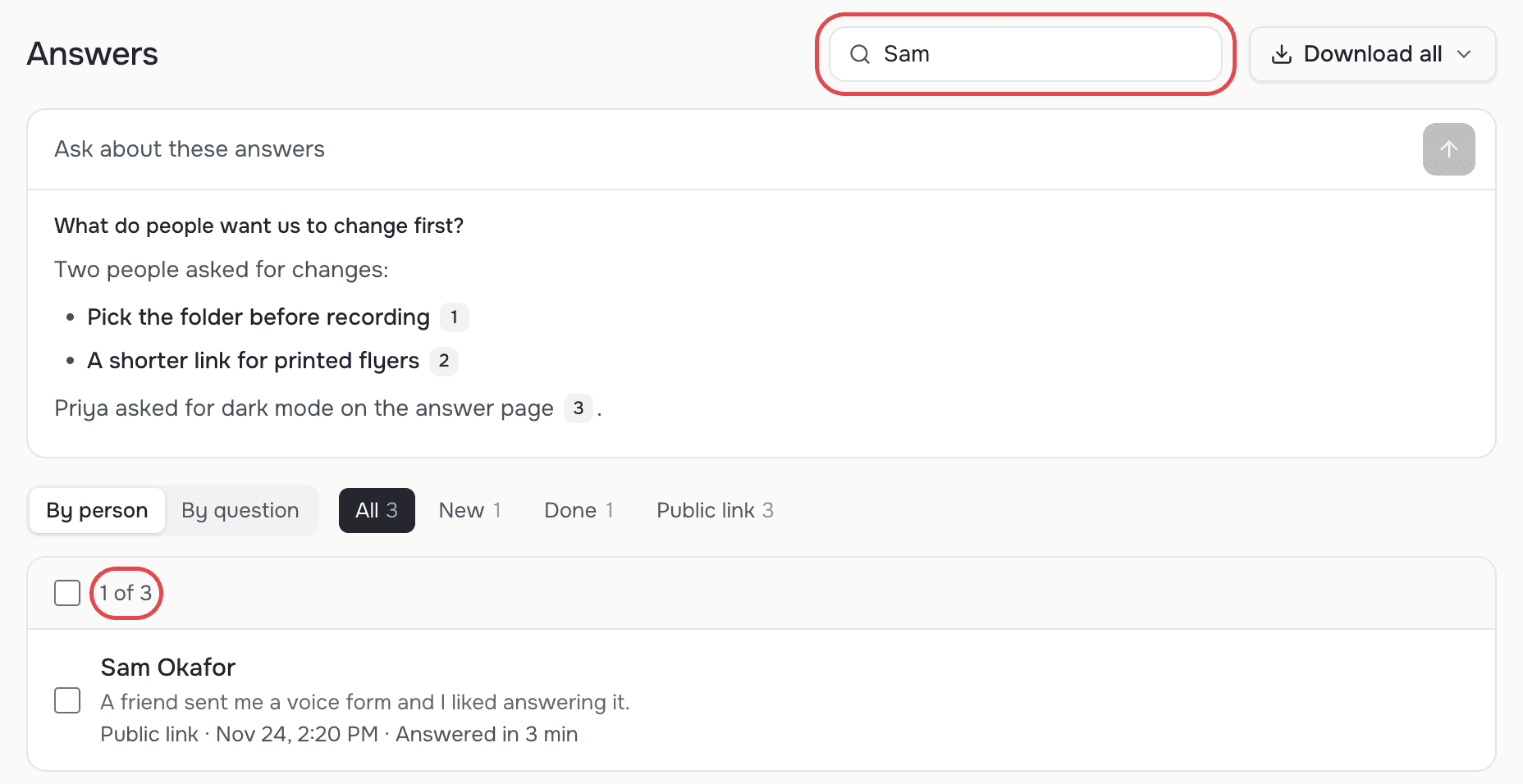
Above the list you see how many answers match, like 1 of 3. Spoken answers are found by their transcript. If your form keeps recordings only, search finds them once you get a transcript. See How to Get Transcripts of Voice Form Answers.
Filter the list
Click a filter next to By person and By question. Each one shows a count.
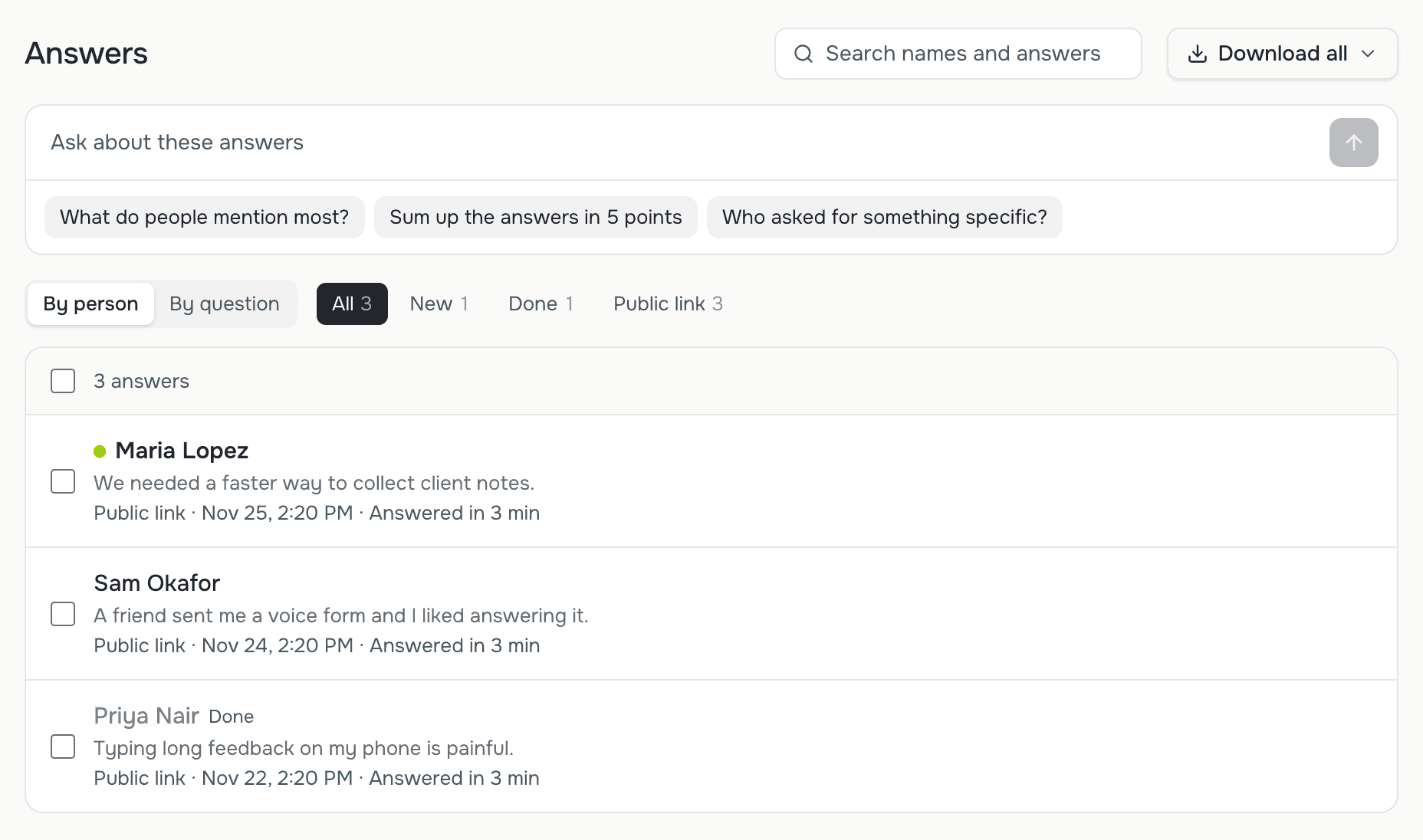
- All: every answer.
- New: answers you haven't opened yet.
- Done: answers you marked as done.
- Private links: answers from any of your private links.
- Public link: answers from the public link.
- To review: answers waiting for your approval before they go to your workflow.
A filter shows only when it has answers, like Done once you mark one as done. To find one private link's answer, search for the name you gave the link.
Search and the filters also apply in By question. Search for a word, then click By question to compare only those people's answers. See How to Read Voice Form Answers.
Mark several answers at once
- Tick the box next to each answer. Shift-click a second box to tick every row in between, or tick the box at the top to select every answer in the filtered list.
- Click Mark as and pick New, Reviewed or Done.
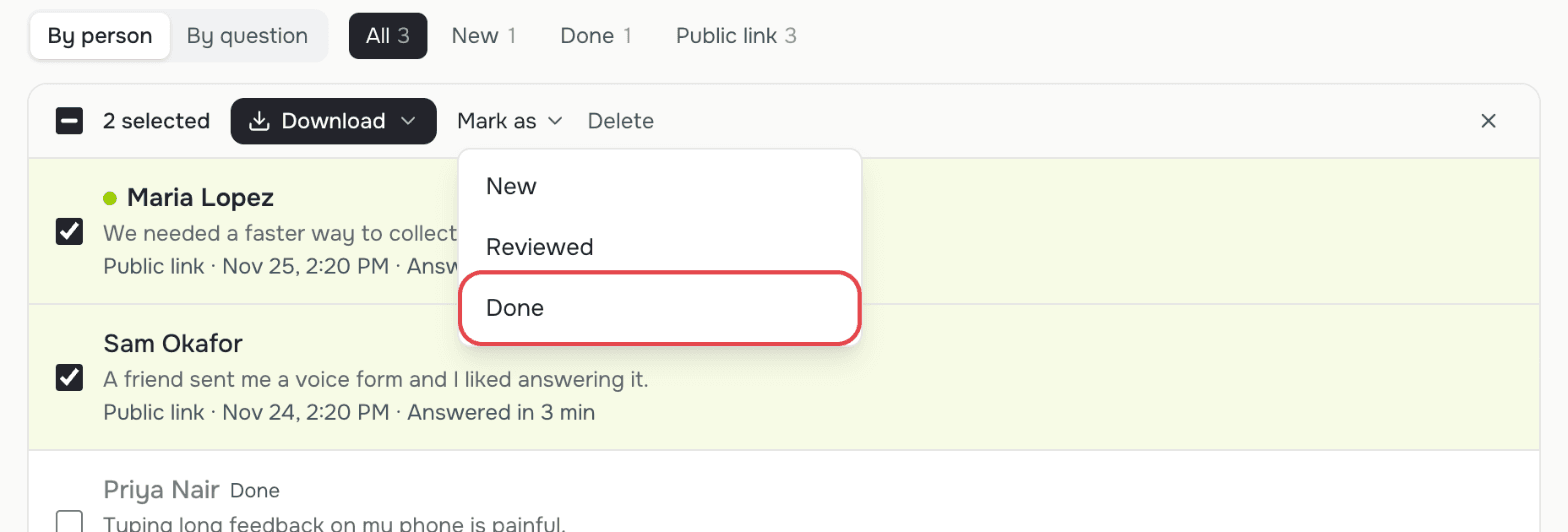
With answers ticked, you can also click Download or Delete. See How to Download Voice Form Answers.