
How to Download Voice Form Answers
Download all your form's answers as Excel or CSV, or as a zip with every recording and transcript. You can do this on every plan.
Download your form's answers as a spreadsheet, or with every recording. You can do this on every plan.
Download all answers
- Open Forms and click your form.
- Above the answers, click Download all.
- Pick a format.
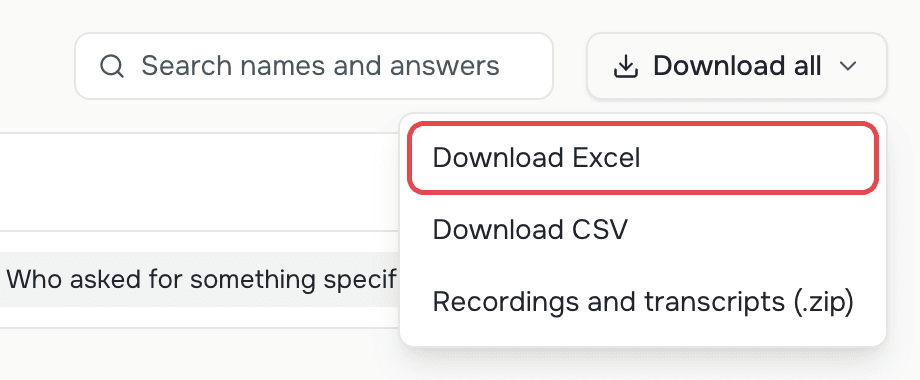
- Download Excel opens in Excel, Numbers and Google Sheets.
- Download CSV is the same table as plain text, for other apps.
- Recordings and transcripts (.zip) holds the spreadsheet and a folder for each person, with their recording and their answers as text. On newer answers, each spoken answer also comes as its own audio file, named after the question.
Download some of the answers
- In the list, tick the box next to each answer you want. Shift-click a second box to tick every row in between, or tick the box at the top to select them all.
- Click Download and pick Recordings and transcripts (.zip), Excel or CSV.
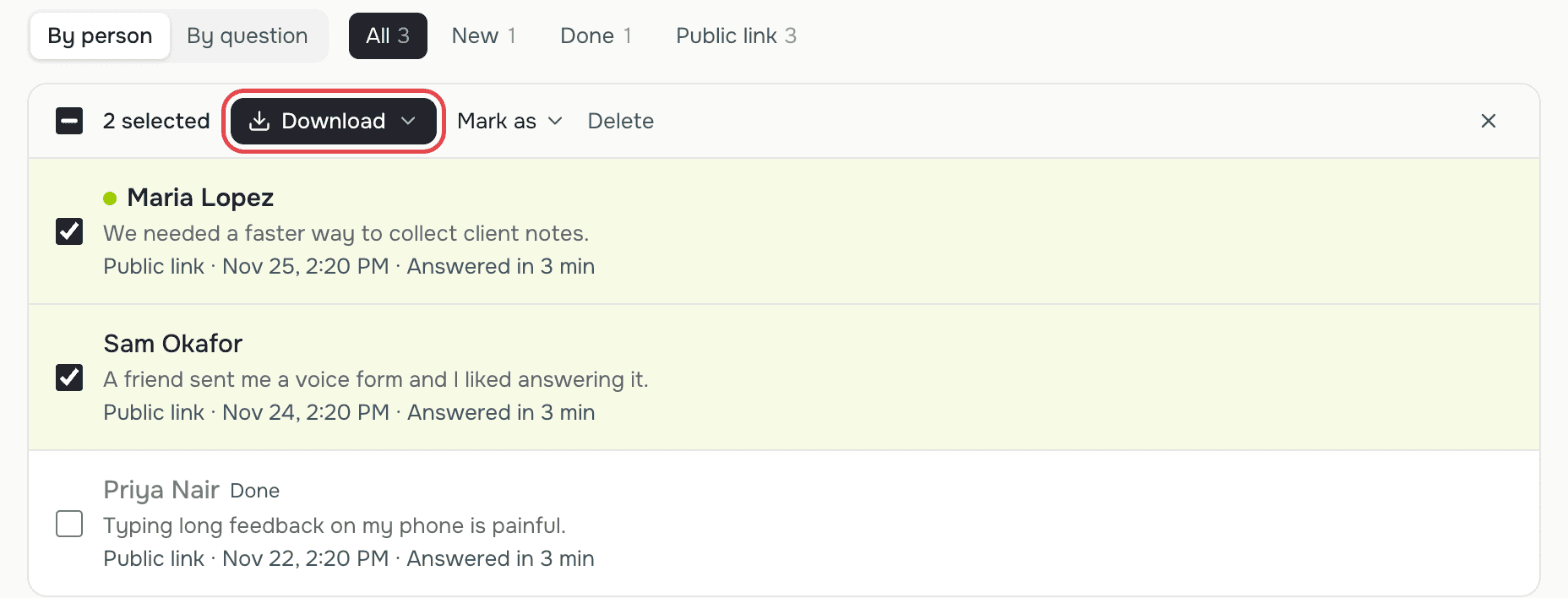
To narrow the list first, use a filter like New or Done, or search. See How to Read Voice Form Answers.
Read the spreadsheet
Each row is one person, oldest first. The columns are:
- Submitted (UTC): when they sent their answers.
- Time taken: how long they took to answer.
- Name and Email, if they gave them.
- Link: Public link or Private link.
- One column per question, with the transcript or the typed answer. A contact details question splits into a column for each detail, like Contact email.
- Recording: a link to the answer's recording page in your dashboard.
Answers to questions you removed from the form keep their own columns at the end.
Download one recording
Open the answer, click Recording page and click Download. Downloading a single recording is part of Pro. On Free, Download shows the upgrade options instead.
Next: Ask about your answers, or close the form once you have enough.