
How to Get Transcripts of Voice Form Answers
Choose whether voice form answers come with a transcript, and transcribe recording-only answers later at no extra cost.
Get a transcript with every spoken answer, or keep the recordings only and transcribe the answers you need later. You can do both on every plan.
Choose what you get for each answer
- Open your form under Forms and click Edit.
- Click Settings at the top.
- Under For each answer, pick one:
- Save the recording: answers come in without a transcript.
- Save the recording and a transcript: every spoken answer comes in with its transcript. New forms start with this one.
- Click Done, then Save changes.
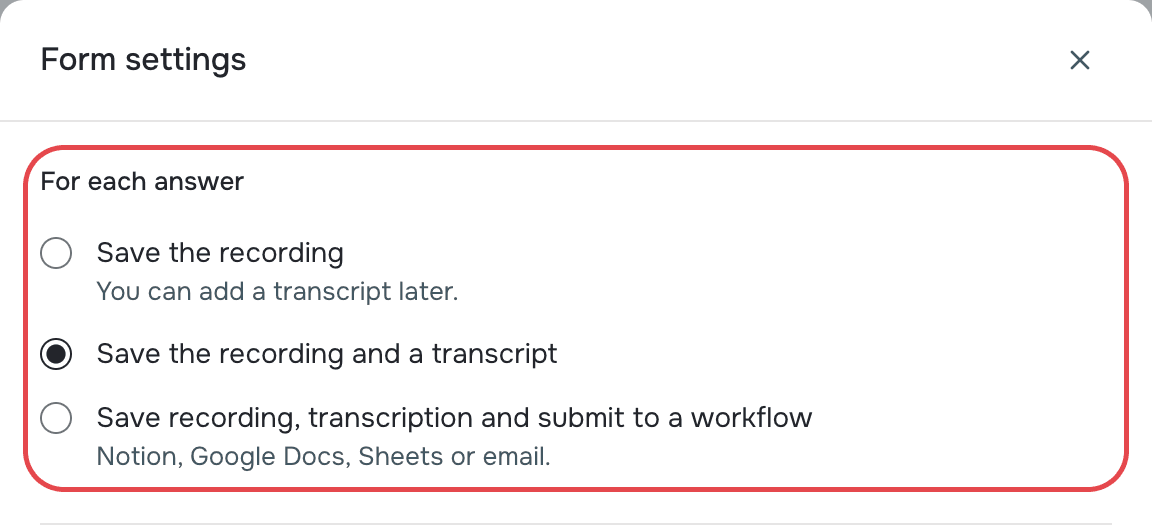
The third option, Save recording, transcription and submit to a workflow, sends answers to Notion, Google Docs, Google Sheets or email on Pro. See How to Send Voice Form Answers to a Workflow.
Transcribe an answer later
- Open your form and click the answer in the list.
- Click Recording page.
- Next to No transcript. This form keeps recordings only., click Transcribe answers.
You get a transcript of every spoken answer from that person. For other people's answers, open each one and click Transcribe answers again.
Know what counts toward your limits
Every answer counts toward your monthly answer audio when it's sent, with or without a transcript: 30 minutes on Free, 600 minutes on Pro and 1,500 minutes on Plus. Transcribing later doesn't count again. See Voice Form Limits on Free and Pro.
Languages
Each spoken answer is transcribed in the language the person speaks, whatever your form language is. See How to Change the Language of Your Voice Form.