
How to Send Voice Form Answers to a Workflow
Send each voice form answer to Notion, Google Docs, Google Sheets or email on Pro, and check public-link answers first.
On Pro, your form can send each answer to one of your workflows: Notion, Google Docs, Google Sheets or email. Every answer also stays on your form's page.
Choose what happens to answers
- Open your form under Forms and click Edit.
- Click Settings at the top.
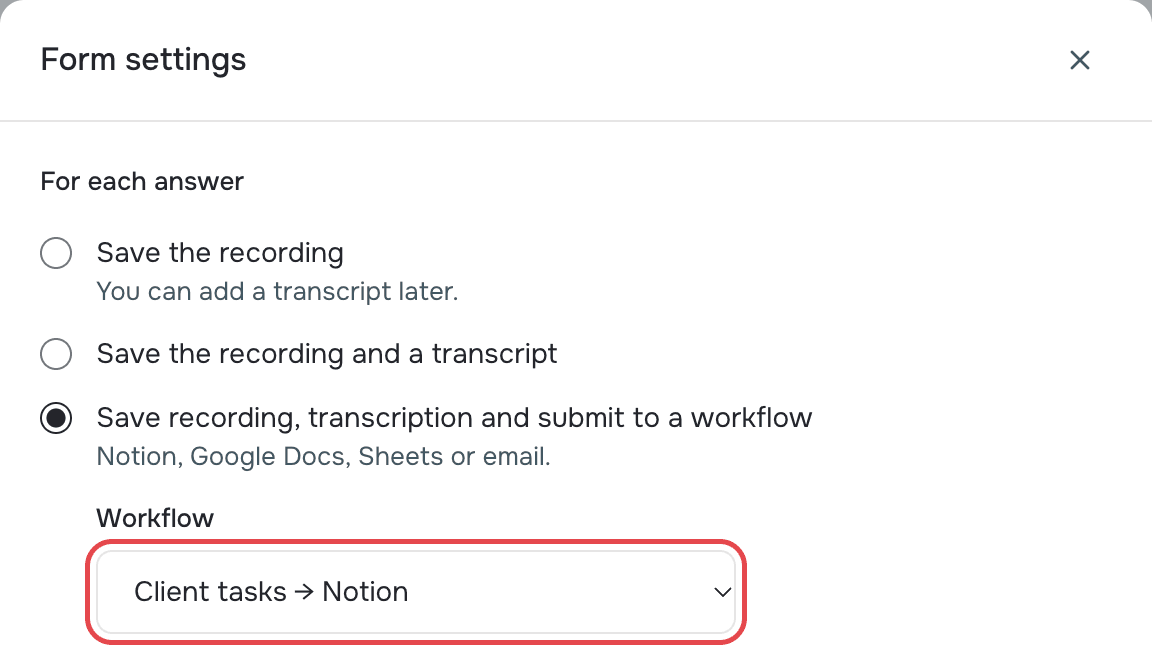
- Under For each answer, pick one:
- Save the recording. You can get a transcript later.
- Save the recording and a transcript. New forms start with this one.
- Save recording, transcription and submit to a workflow. Pro only.
- Click Done, then Save changes.
Choose a workflow
After you pick Save recording, transcription and submit to a workflow, choose one of your workflows in Workflow.
If you see You have no workflows yet., click Create one and set up a workflow first. See Workflows, Notion and Email. For Google Docs and Google Sheets, see Workflows.
Know what your workflow gets
Each person's answers go to your workflow as one voice note, titled with your form's title and their name, like "Customer feedback: Anna". The note holds every question with its answer: spoken answers as transcripts, and typed or picked answers as they were given.
Your workflow handles the note like one you recorded. A Notion database or a Google Sheets spreadsheet gets its columns filled in from the answers, a Notion page or Google Doc gets a summary and the transcript, and an email workflow sends the summary and transcript you chose.
Check answers before they're sent
You can hold answers from the public link until you approve them. See Review answers before they go to your workflow.
On the Free plan
Save recording, transcription and submit to a workflow shows a Pro badge, and picking it asks you to upgrade.
If you move from Pro to Free, new answers keep their recording and transcript but aren't sent to your workflow. Answers you approve after that aren't sent either. To save changes to the form on Free, first pick one of the other two options under For each answer.