
How to Preview a Voice Form
Preview a voice form from the builder or the form's page, see where you can record, and send a real test answer with Open form.
Preview your form to click through it the way people will. Nothing you do in a preview is saved or sent.
Preview while you edit
In the builder, click Preview at the top. The Form preview window shows the form with your latest changes, saved or not, open on the part you selected in the outline. Select Cover first to start from the beginning. Go through the steps with Next and Back, and click Submit form at the end to see your thank you screen. Click Close to go back to the builder.
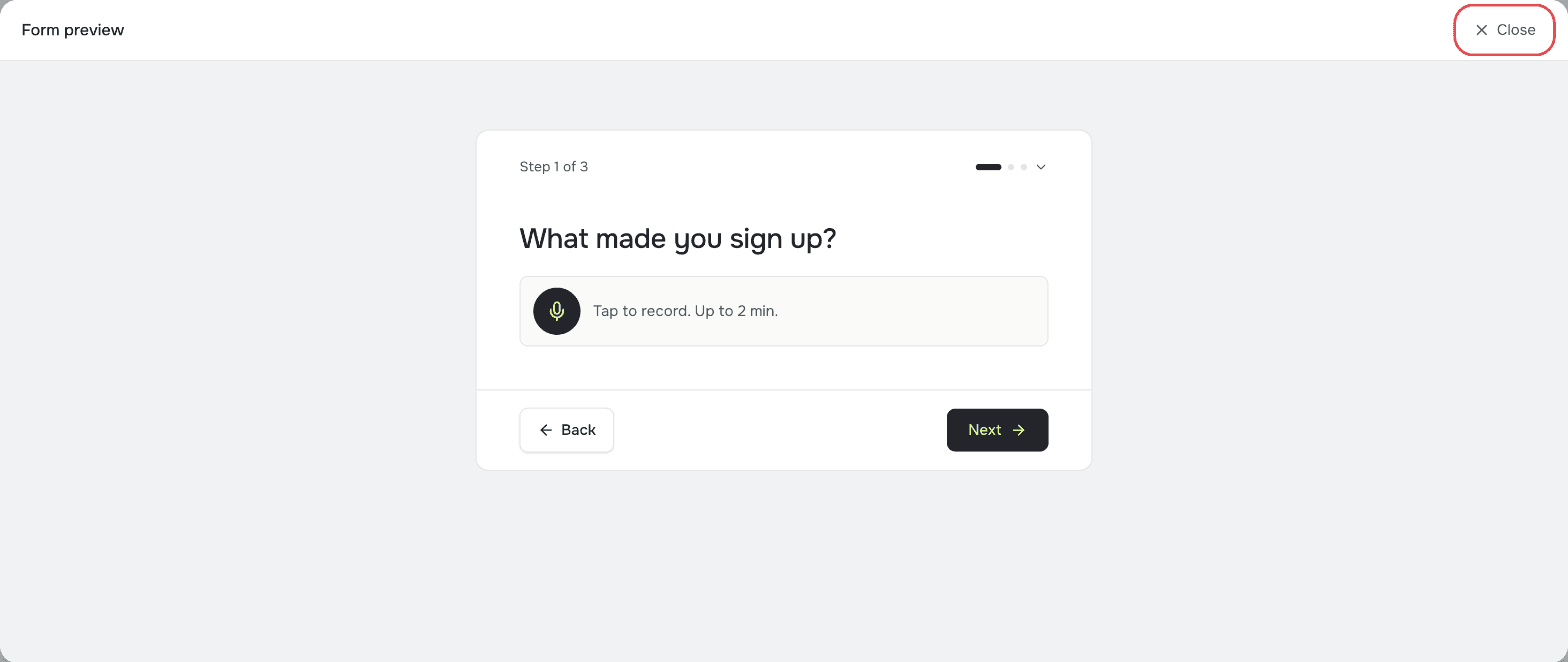
You can type answers and pick options, but recording is off. When you click the record button, you see Recording is off in the preview.
Preview a saved form
Open your form under Forms and click Preview at the top of the form's page. The form opens with a bar above it: Preview. Nothing you record here is saved or sent.
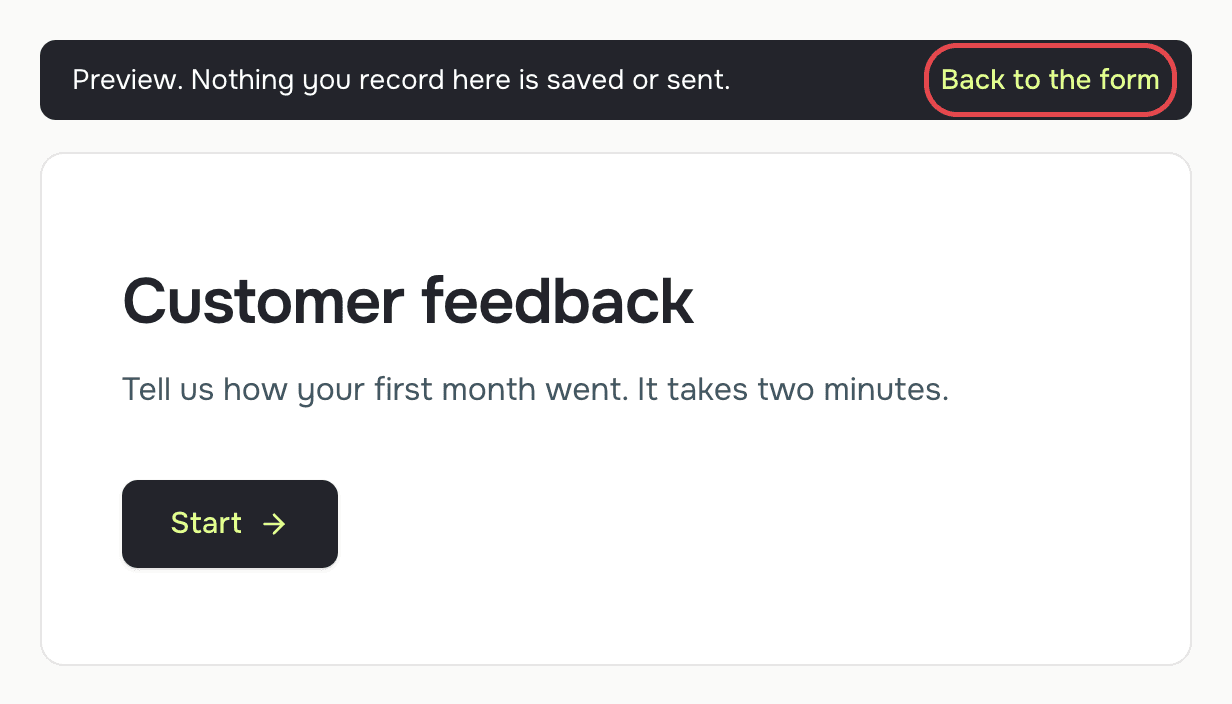
Here you can record answers too, to check your microphone and the answer length. Click Back to the form when you're done.
This preview shows the form as last saved. If you're editing, click Save changes first.
Send a real test answer
To test the whole way through, open the form from its link. Click Share in the builder of a saved form, or scroll down to Share on the form's page. Under Public link, click Open form. If the link is off, click Turn on public link first. See How to Share a Voice Form.
An answer you send this way is a real answer. You find it on your form's page with the others.