
What People See When They Answer a Voice Form
The answer page step by step: the start screen, the microphone check, recording and re-recording, finishing later and sending.
People answer your form on its own page, on a phone or a computer, without an account.
Start screen
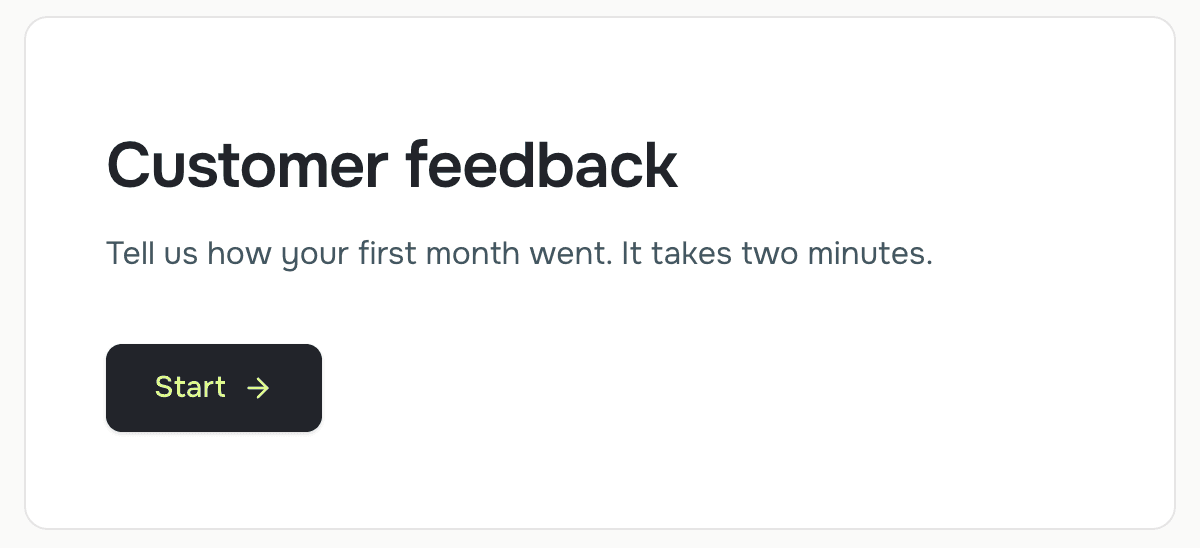
The page opens with your form's title and description, and a Start button. On Pro, you can change the button's label.
Above Start, people fill in Your name, and Your email if you ask for it on the public link. See Ask for a name or email. If the public link has a password, they type it in Password. See How to Password Protect a Voice Form.
Microphone check
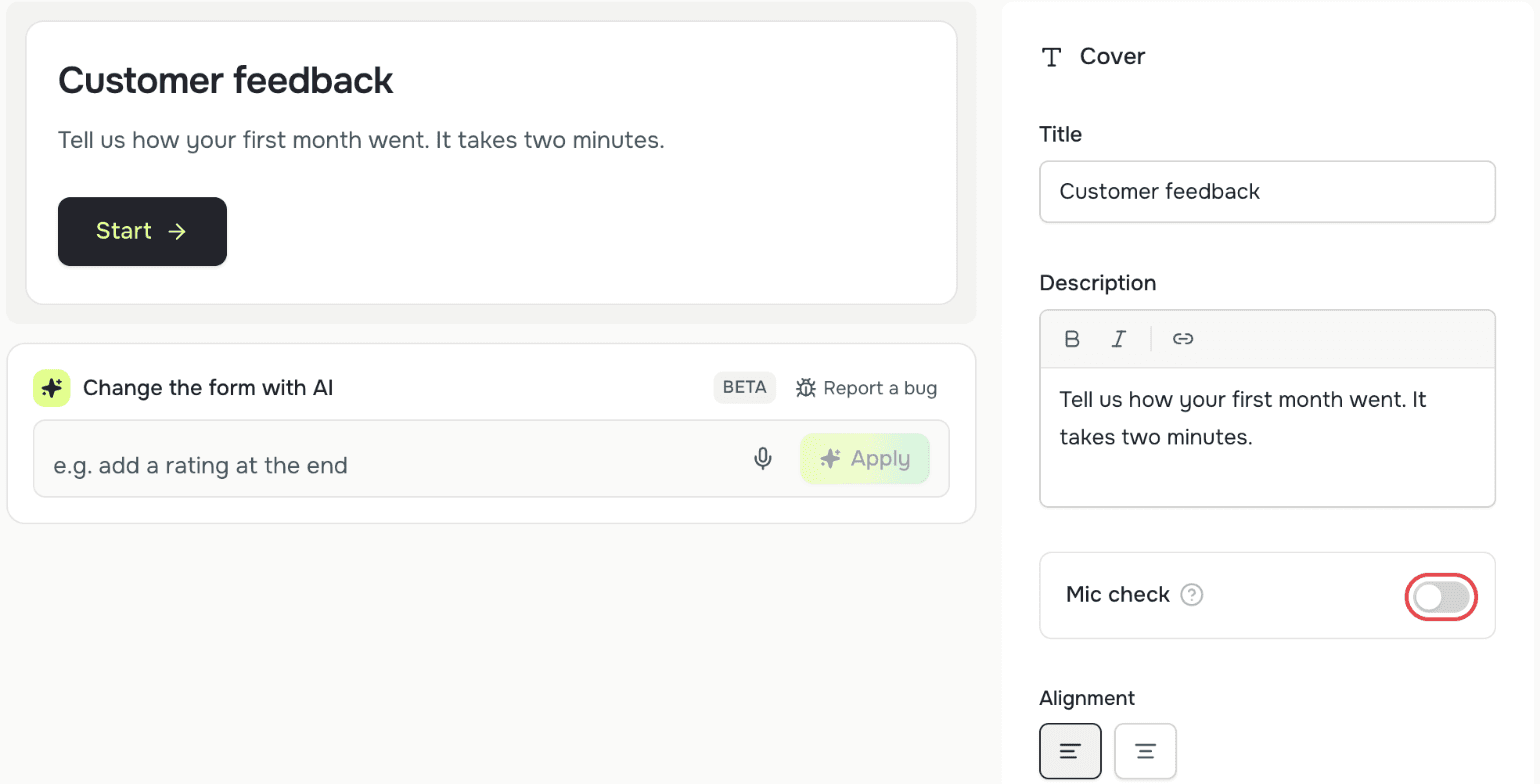
To let people test their microphone before they start, open your form under Forms, click Edit, click Cover in the outline and turn on Mic check. The check shows on forms with a voice question.
On the start screen, people see Check your microphone and click Record a test. They say a few words for 3 seconds, then see Your microphone works and can play the test back. Record again runs it once more. The test isn't sent to you, and people can click Start without it.
If the test is silent, they see We couldn't hear anything in this recording. Check your microphone and record it again.
Recording an answer
A voice question shows Tap to record. with the longest answer you set, like Tap to record. Up to 2 min. People tap to start and tap again to stop. The recording stops by itself at the limit.
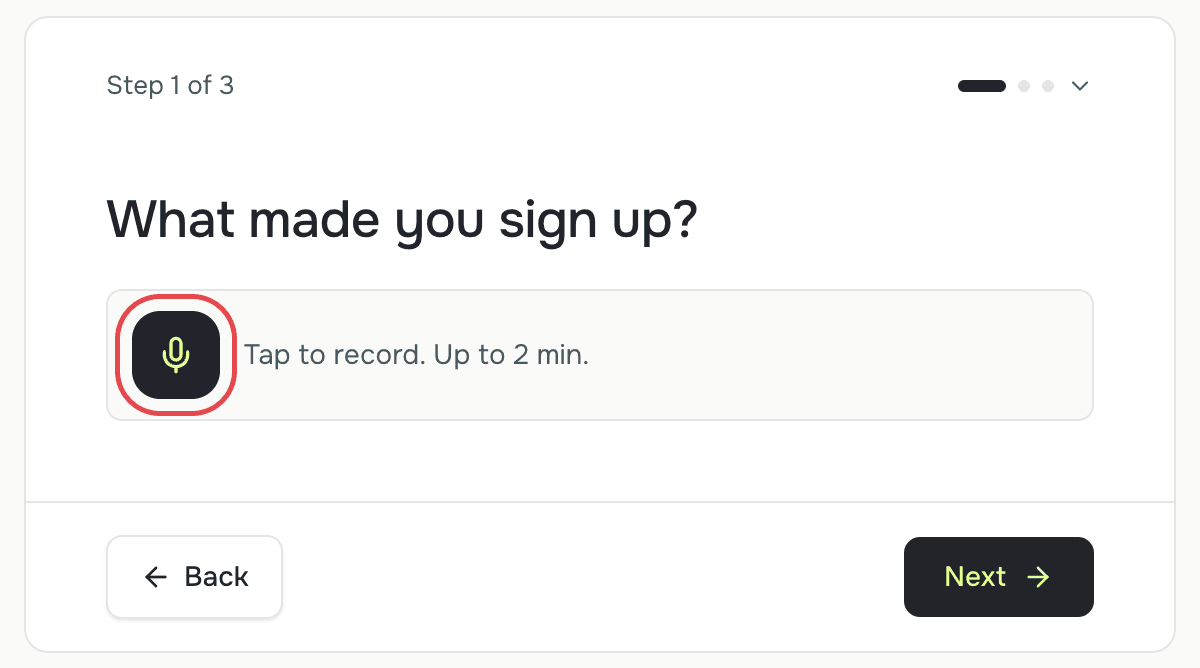
After recording, they can play the answer back. Record again replaces it. Continue records more onto the end, up to the time left.
If the browser blocks the microphone, people see Microphone access is blocked. Allow it in your browser's site settings, then try again. On an iPhone or iPad, the message names the app and where to look, like The microphone is off for Safari. Turn it on in your iPhone Settings, under Safari, then reload this page. On a website widget that can't use the microphone, they see Open in a new tab to record.
People move between steps with Next and Back. A required voice question shows Record an answer to continue. until they record one.
Coming back later
Answers are saved at each step. If people close the page, they can open the same link in the same browser within 7 days and carry on from the step where they stopped, with their earlier answers in place.
Sending
On the last step, people click Review and see Check your answers, with each answer listed. Change takes them back to an answer. They click Submit form, or your own label on Pro, to send.
They then see Sent and Your answer is submitted. Thank you, you can close this page., or your own thank-you message. A private link stops working once its answer is sent: opening it again shows This link has already been used to answer. Ask for a new link to answer again.